
Every language channel of a session gets its own transcript as soon as captions begin. You read or download them after the event.
Read or download a transcript
- STEP 1Open TranscriptionsOn the session's page, open Transcriptions. Transcripts & translations lists one row per language channel.
- STEP 2Read itSelect Read on a language.
- STEP 3Download it
Select Download with the language, then choose a format: Word Document (.docx), PDF (.pdf), Markdown (.md), Plain Text (.txt) or SRT (.srt).
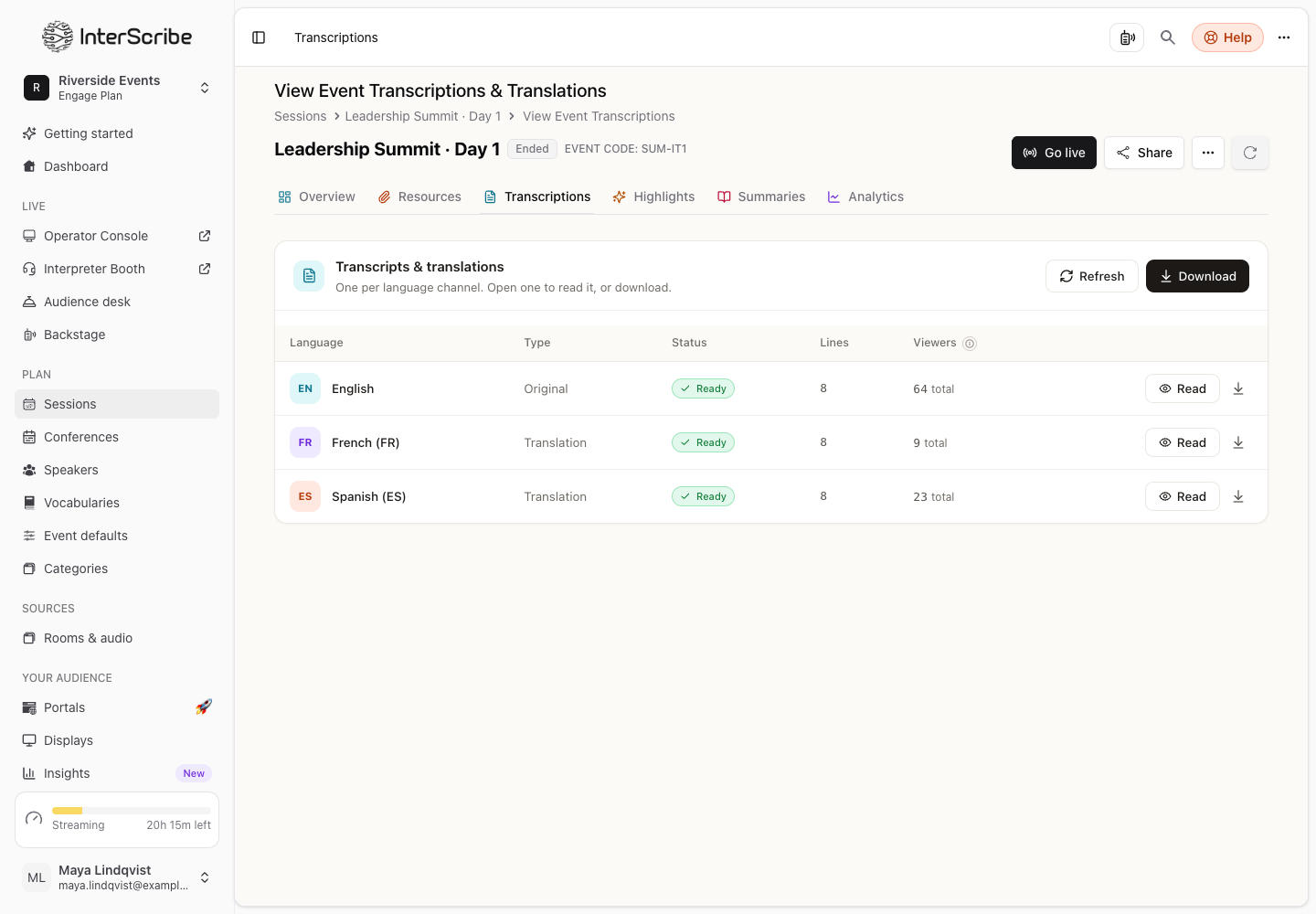
Each row also shows Viewers. While the session is live it is still counting; after the event it is the total of unique viewers for that language.
Let listeners download it
In the session's settings, open Slides & transcript and turn on Transcript download. After the session, signed-in listeners find Download transcript in the More menu of the listener page. They get the whole session in their language as Text (.txt) or Subtitles (.srt), timed to the replay.
If something goes wrong
Transcripts appear once the event starts: the session has not produced captions yet. Select Refresh after it starts.