
Overview
For large-scale events, multi-room facilities, or broadcast setups, you can integrate InterScribe into your existing AV infrastructure using a dedicated rack system. These systems run InterScribe agents on rack-mounted mini PCs or embedded Linux devices, with audio routed via Dante, NDI, or analog interfaces. This approach centralizes audio management while supporting high-quality, multi-channel streaming.
🪜 Step‑by‑Step Instructions
-
Plan your architecture
-
Determine the number of rooms and languages you’ll support.
-
Each simultaneous language or room requires a unique AV Channel in InterScribe .
-
Choose your integration method:
- Dante or NDI for IP-based digital routing
- Analog for simpler setups
-
-
Select rack hardware
-
Use rack-mounted mini PCs or embedded Linux devices (e.g., Intel NUCs).
-
Each device should run the Desktop Streamer Agent and have:
- SSD storage
- 4–8 GB RAM
- Wired gigabit Ethernet
-
Pair with audio interfaces suited to your transport:
- Dante/NDI card
- AES67 interface
- Multi-channel USB interface
-
-
Configure network audio routing
-
For Dante:
- Connect mixers/mics via Dante-enabled stage boxes or adapters
- Use Dante Controller to route channels to the Dante Virtual Soundcard on the mini PC
-
For NDI:
- Send audio via NDI encoders (e.g., BirdDog, Kiloview)
- Install NDI Tools and select the NDI source in the Desktop Agent
-
-
Install and configure InterScribe Desktop Agent
- Install the agent on each rack PC
- Assign a unique AV Channel to each device in InterScribe
- Select the correct input device (Dante, NDI, or USB) and verify audio levels
-
Connect to your mixing console
- Use aux sends or matrix outputs to create clean, pre-mixed feeds for each language
- Avoid sending ambient mics unless needed
- Clearly label cables and ports for quick identification
-
Monitor and manage
- Use the Monitor Dashboard in InterScribe to track agent status and AV Channel activity
- Keep redundant gear on hand (e.g., spare mini PC, audio interface)
- Test failover workflows ahead of any major event
✅ Tips & Best Practices
- Redundancy: Use backup power and network paths for critical systems
- Latency: Balance buffer size vs delay for Dante/NDI; avoid Wi-Fi for agents
- Cooling & cable management: Keep racks ventilated and clearly routed
- Document everything: Maintain an audio routing map and agent assignments
🖼️ Visual Aids
📸 Diagram – Rack Integration
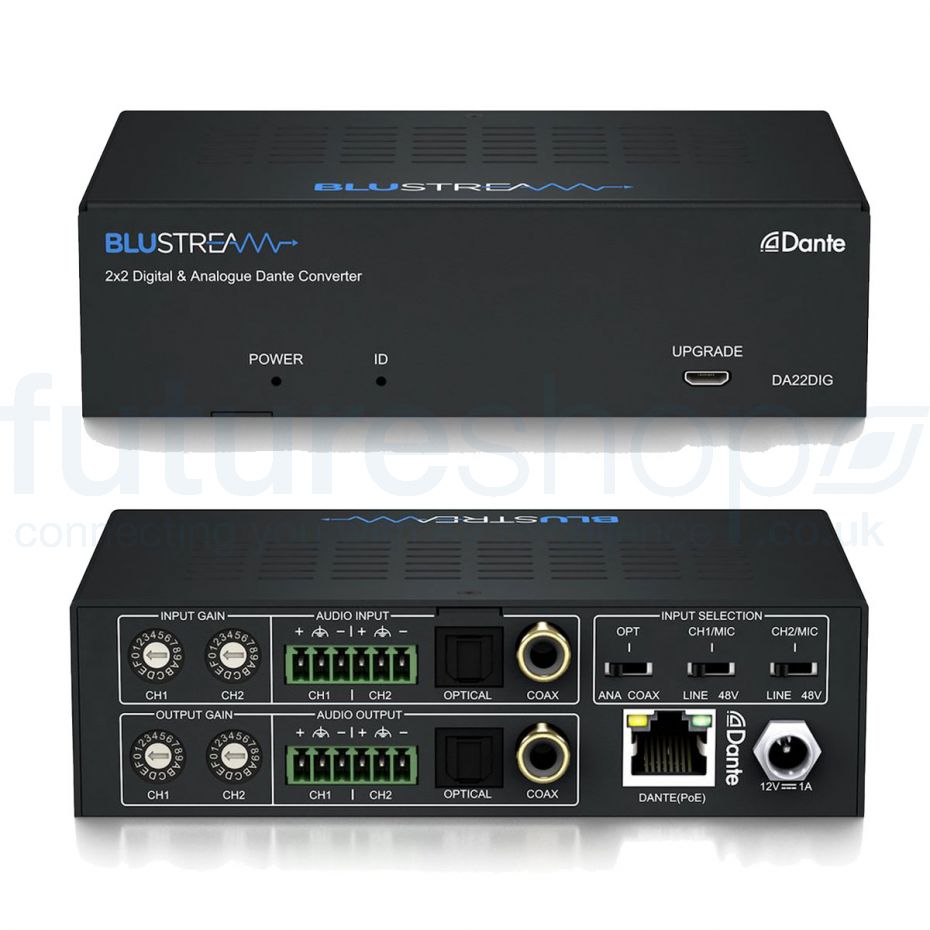
📸 Photo – Pro AV Rack
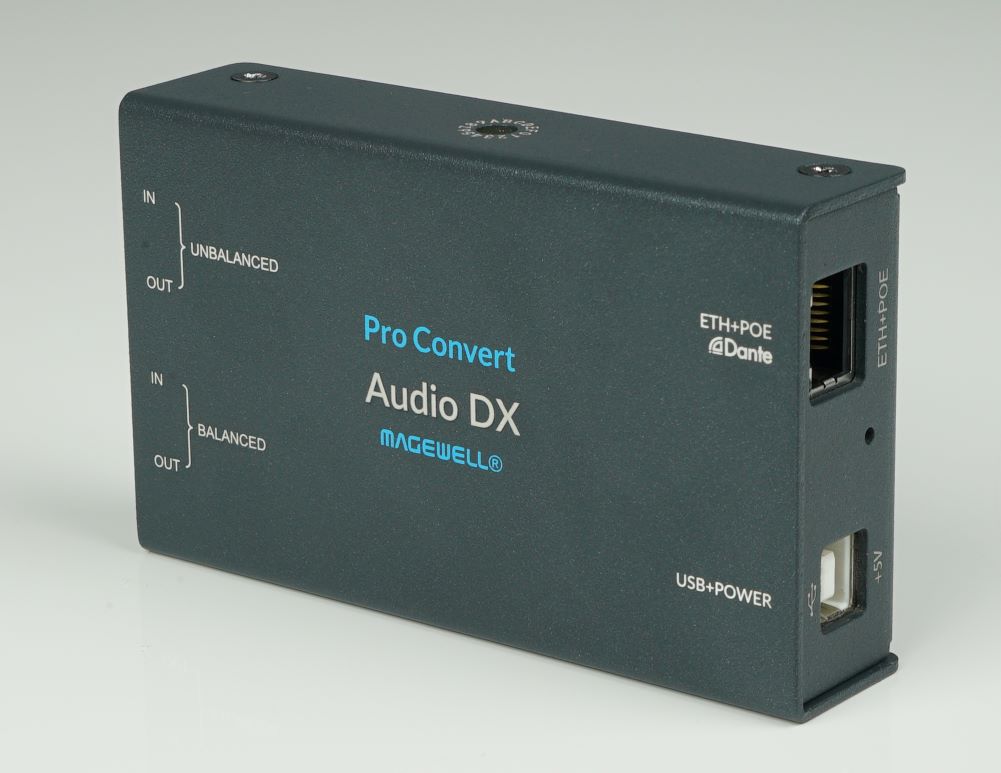
🛠 Troubleshooting / FAQs
| Issue | Cause | Solution |
|---|---|---|
| Dropouts or lag | Network congestion or low buffer | Use isolated AV networks and increase Dante/NDI buffer size |
| Wrong audio source in session | Misassigned AV Channel | Check agent configuration and AV Channel selected in event |
| Buzz/hum in analog feed | Ground loop or interference | Use balanced connections and DI boxes; common ground preferred |
| Agent offline | Hardware or service failure | Swap to spare device and set up monitoring for alerts |
ℹ️ Note: This is a high-level guide. For wiring diagrams, licensing, or vendor-specific config (e.g., Shure, Allen & Heath, Yamaha), consult AV documentation or hire a certified integrator.
🔗 Related Articles
- 🎚 USB Audio Interfaces & Mixers – For small-scale setups
- 📦 Raspberry Pi Streaming Agent – For dedicated low-cost rooms
- ⏱ Latency Management & Best Practices – Reduce delay and improve stream stability