
When a speaker cites a Bible verse, listeners can tap it in the captions and read the passage in their own language, without leaving the session.
Bible reader · DisponibleTurn on Scripture tools
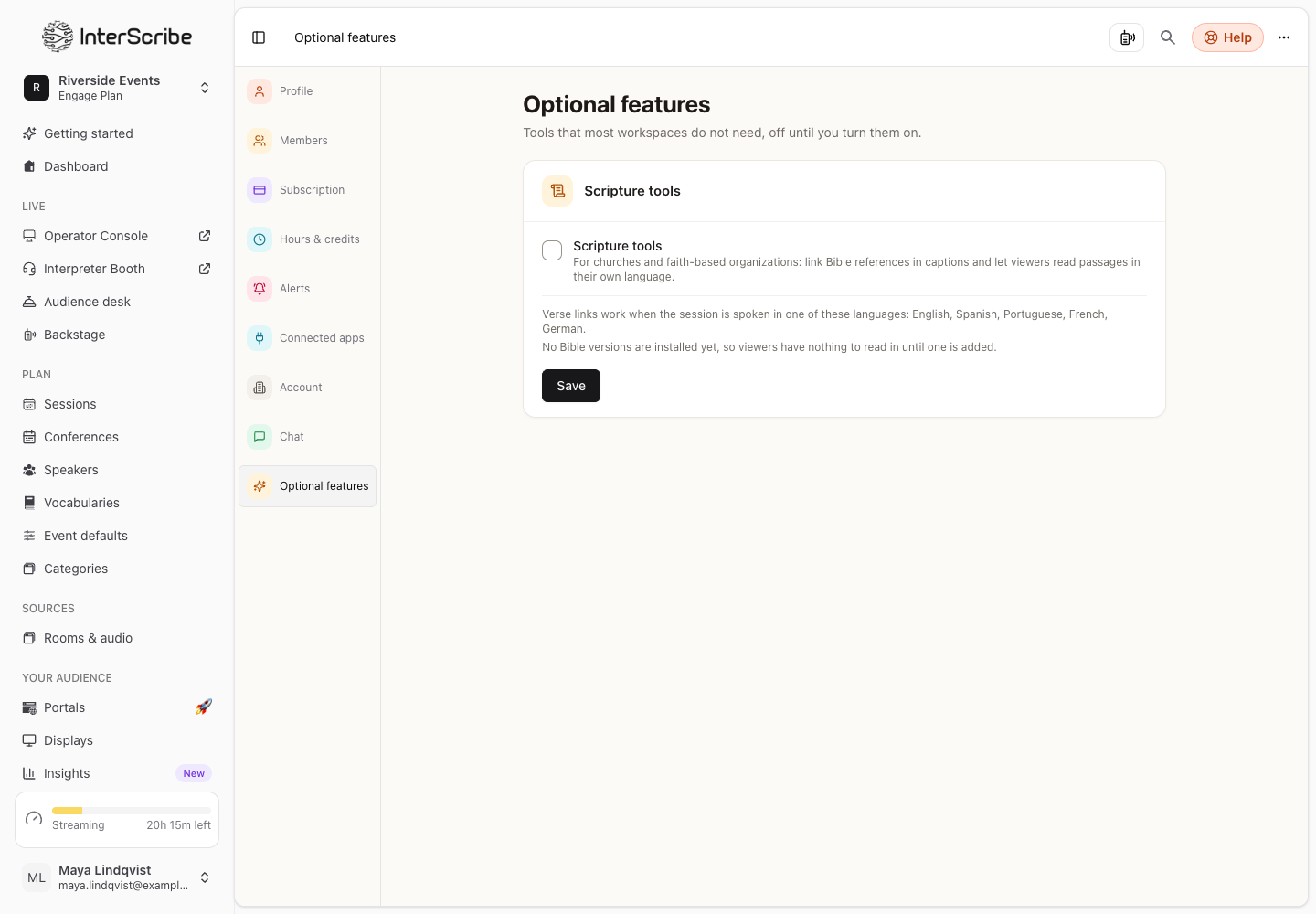
- STEP 1Turn on Scripture tools
Go to Settings › Optional features and turn on Scripture tools. The page lists the languages verse links work in, and the languages viewers can read the Bible in.
- STEP 2Choose the versions
Go to Settings › Bible. Under Version per language, choose the version each viewer language reads. No version hides the Bible for that language.
- STEP 3Link cited versesOn the same page, turn on Link verses the speaker cites.
- STEP 4Turn it on for a session
In the session's settings, open Bible and turn on Bible reader, and Link verses the speaker cites if you want it for this session.
Verse links work only when the session is spoken in a supported language; for other languages, the session's settings say so, and viewers can still open the Bible reader.
What listeners see
- A cited verse becomes a link in the captions, marked Bible verse. Tapping it shows the verse, with Read the chapter.
- The Bible tab opens the reader. Listeners Choose a passage by Book, Chapter and Verse, and switch the Bible version when the session offers more than one.
- In this sermon lists the passages cited so far, each with the time it was cited.
- Signed-in listeners can Highlight a passage or Add to notes.
- Back to captions returns to the live captions.
If something goes wrong
- This verse isn't available right now or Verses are unavailable right now.: try again in a moment.
- No Bible versions are installed yet. in your settings: no version is available for that language yet.