
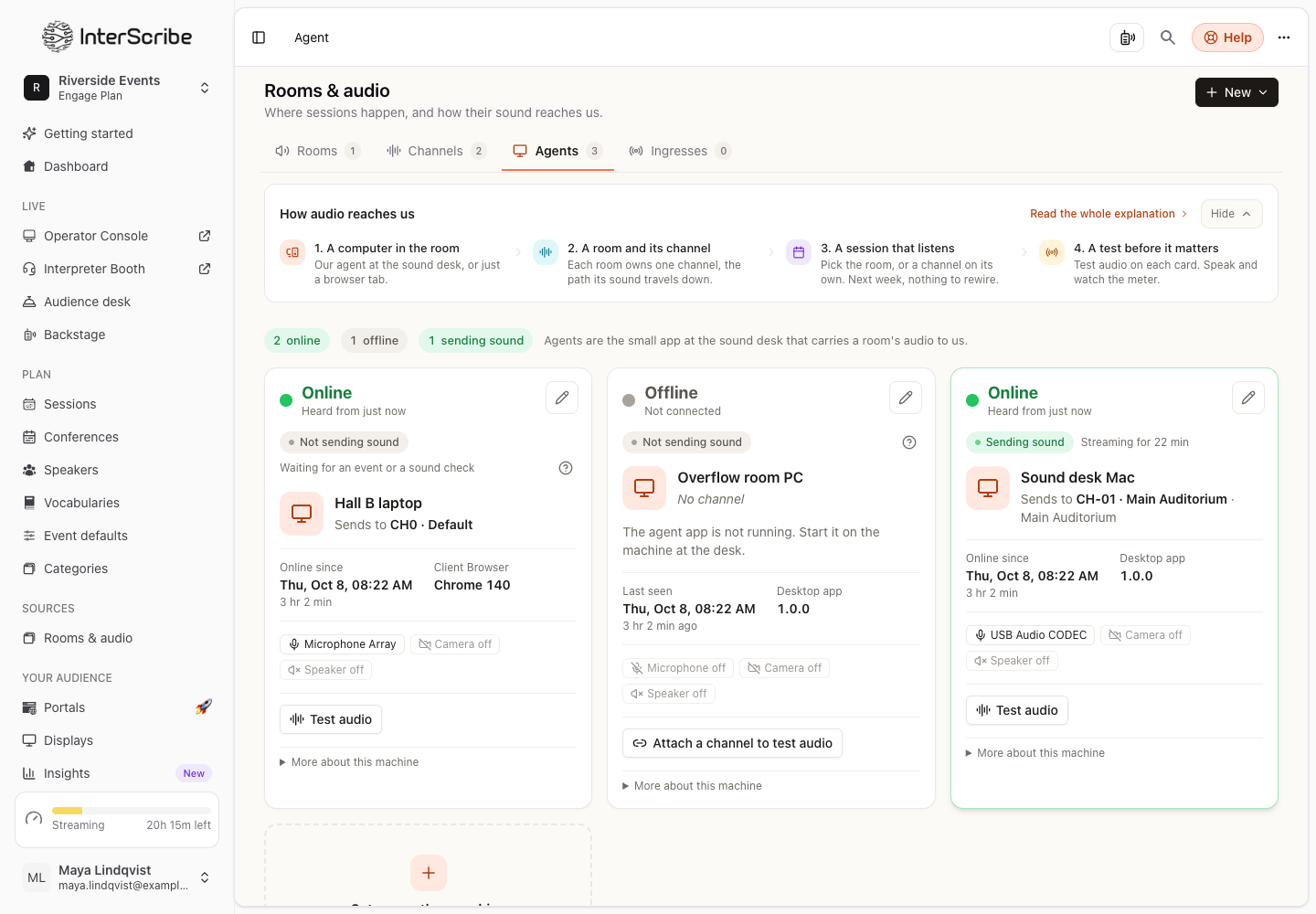
The Agents tab under Rooms & audio lists the machines that pick up sound at your venues. The line at the top counts how many agents are online, how many are offline and how many are sending sound, and how many need attention when any do. Each card says whether the agent is connected, whether it sends sound, and what to do when something is wrong.
Is it connected?
The top of each card says one of three things:
- Online, with Heard from and how long ago: the agent is connected and checking in.
- Offline: the agent is not connected. Not connected means the agent app is not running; Not heard from lately means it stopped checking in without saying goodbye, for example when the computer lost power. Start the app on the machine at the desk.
- Never connected: Has not checked in yet. Install the agent and sign in.
Is it sending sound?
Below the name, the card says what happens to the sound:
- Sending sound: the agent streams to its channel, with Streaming for and how long. Nothing to do.
- Not sending sound with Waiting for an event or a sound check: connected, and it has never streamed yet. Nothing is wrong.
- Not sending sound with Sent sound before, then stopped: signed in but not sending audio. Start streaming from the agent at the desk.
- Sending, but muted: streaming with the microphone muted, so nothing is getting through. Unmute it at the desk.
- No channel where the card would say Sends to: the agent has no AV channel, so its audio has nowhere to go. Choose one in the agent's settings.
- Not sending sound, and the card says the pairing key this device signed in with was switched off or has expired: sign it in again with a valid key.
- Slides station online: a slides station sends no sound, so this is its normal state.
A muted agent, an agent with no channel, one that stopped sending and one whose key is no longer valid count as needs attention in the line at the top.
The details on each card
- Sends to names the agent's channel.
- Online since, or Last seen for an agent that is offline.
- Desktop app shows the version of the desktop agent, with Update available when a newer version is out, or Up to date. A browser agent shows its browser instead. Not reported means the app is too old to say: update the app on the machine.
- The microphone, camera and speaker the agent uses, or Microphone off, Camera off and Speaker off.
- Test audio checks the channel's sound before a session. An agent with no channel offers Attach a channel to test audio instead.
- More about this machine shows the latest release, the operating system, the IP address and when it started streaming.
Sign out a lost or replaced device
If a device was lost, replaced or handed to someone else, sign it out:
- STEP 1Open the agentOn the Agents tab, open the agent, then its Settings tab.
- STEP 2Sign it outUnder Sign-in, select Sign out this device, then Sign out.
The device stops sending audio and slides at once and must be signed in again before it works. The desktop agent tells the person at the desk that the device was signed out.