
Before a session goes live, the room's channel waits in standby. This page explains what the Console's Source panel tells you during that time, how to hear the room before the start, and how the session goes live by itself.
Standby
Standby means the channel is ready. It starts streaming by itself when the session goes live. The panel shows OPENS with the start time, and the last sound check below it, for example Sound check 18:42 · audio heard, or Not tested yet.
Listeners hear nothing while the channel is in standby.
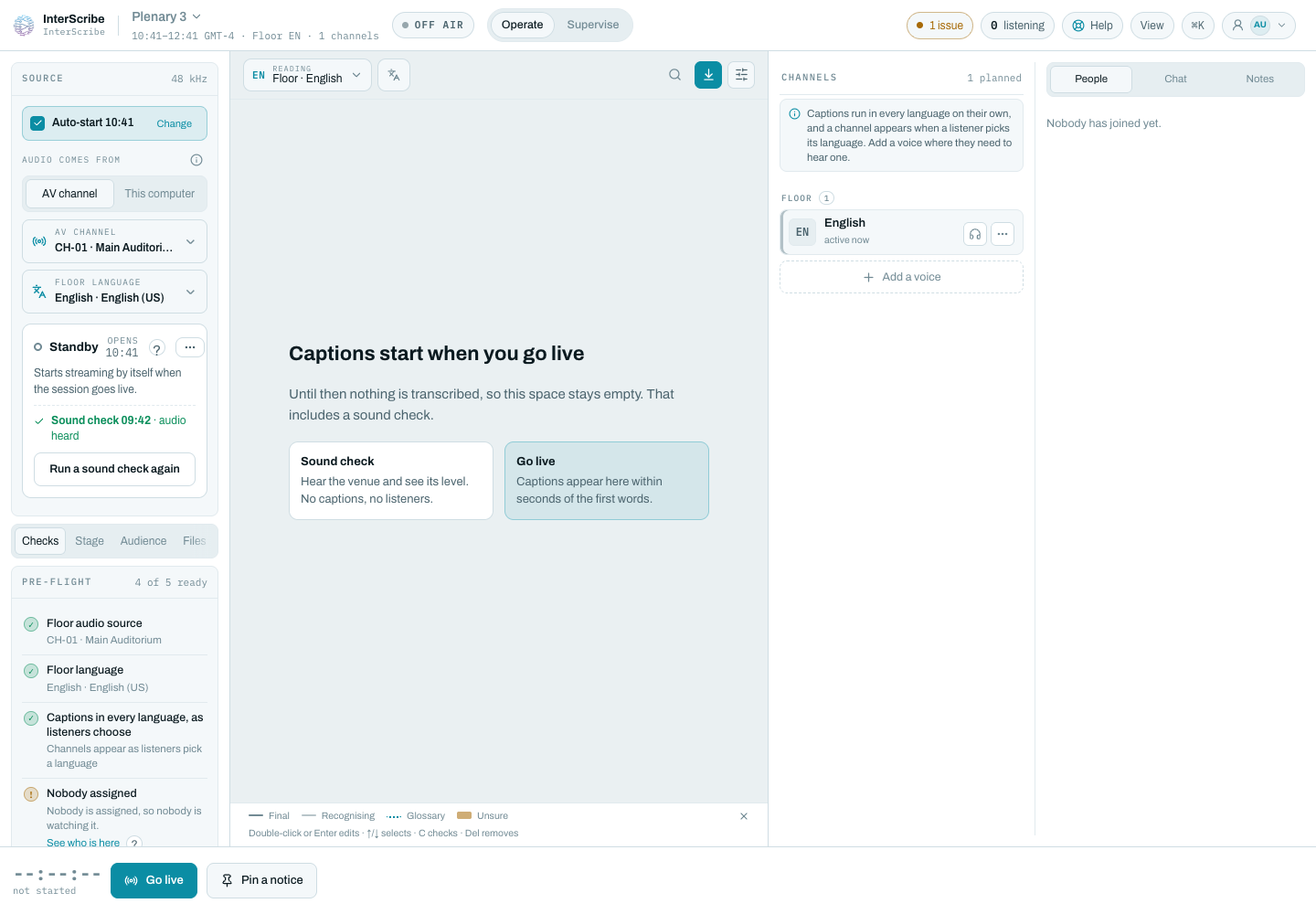
Run a sound check
Select Run a sound check in the Source panel and confirm. The check asks the agents on the room's channel to start sending now, without waiting for the session to go live, and shows what arrives:
- It runs for up to 5 minutes, or until you select Stop check.
- The panel shows who connects, whether audio arrives, and lets you listen.
- It is not the session's source: nothing reaches the audience from it.
The result stays on the panel:
- Sound check time · audio heard: sound reached InterScribe from the room.
- Sound check time · connected, heard silence: the agent is connected but the sound is silent. Unmute the channel on the sound desk, then test again.
- Sound check time · nothing heard: nothing arrived. Check that the agent computer is on and the InterScribe Agent is open.
Start the room's audio early
To hear the room and watch the meter well before the session, open the channel menu in the Source panel and select Start audio early. Choose Until the session starts, For 30 minutes or For 10 minutes, then Start early audio.
Viewers hear nothing until the session starts. With Until the session starts, the session takes over at its start time without a break. When early audio ends, the channel goes back to standby.
Auto-start
The Source panel says how the session starts:
- Auto-start followed by the start time: the session goes live at its start time and transcription starts with it. Nobody has to press anything.
- Someone has to start this session: it will not go live on its own. Someone presses Go live at the start time, then starts transcription.
To switch, select Change (require a manual start) or Let it start automatically. Turning auto-start off asks first, because if nobody is at the desk the session does not start, there are no captions on any channel, and interpreters cannot take their booths.