
A room is where a session happens. Each room owns one AV channel: the named path the room's sound travels down. Every session in the room takes its sound from that channel.
Rooms and their AV channel · AvailableCreate a room
- STEP 1Open Rooms & audioGo to Rooms & audio in the sidebar.
- STEP 2Add the roomSelect New and choose Room.
- STEP 3Name it
Type its Name. Its AV channel is named after the room, so choose a name people will recognize. Turn on Requires access code? if people should enter a PIN code to open the room.
- STEP 4Create itSelect Create. The room gets a permanent link and a channel of its own.
You can also create a room while you fill in a session (New room) or a conference (Add a room).
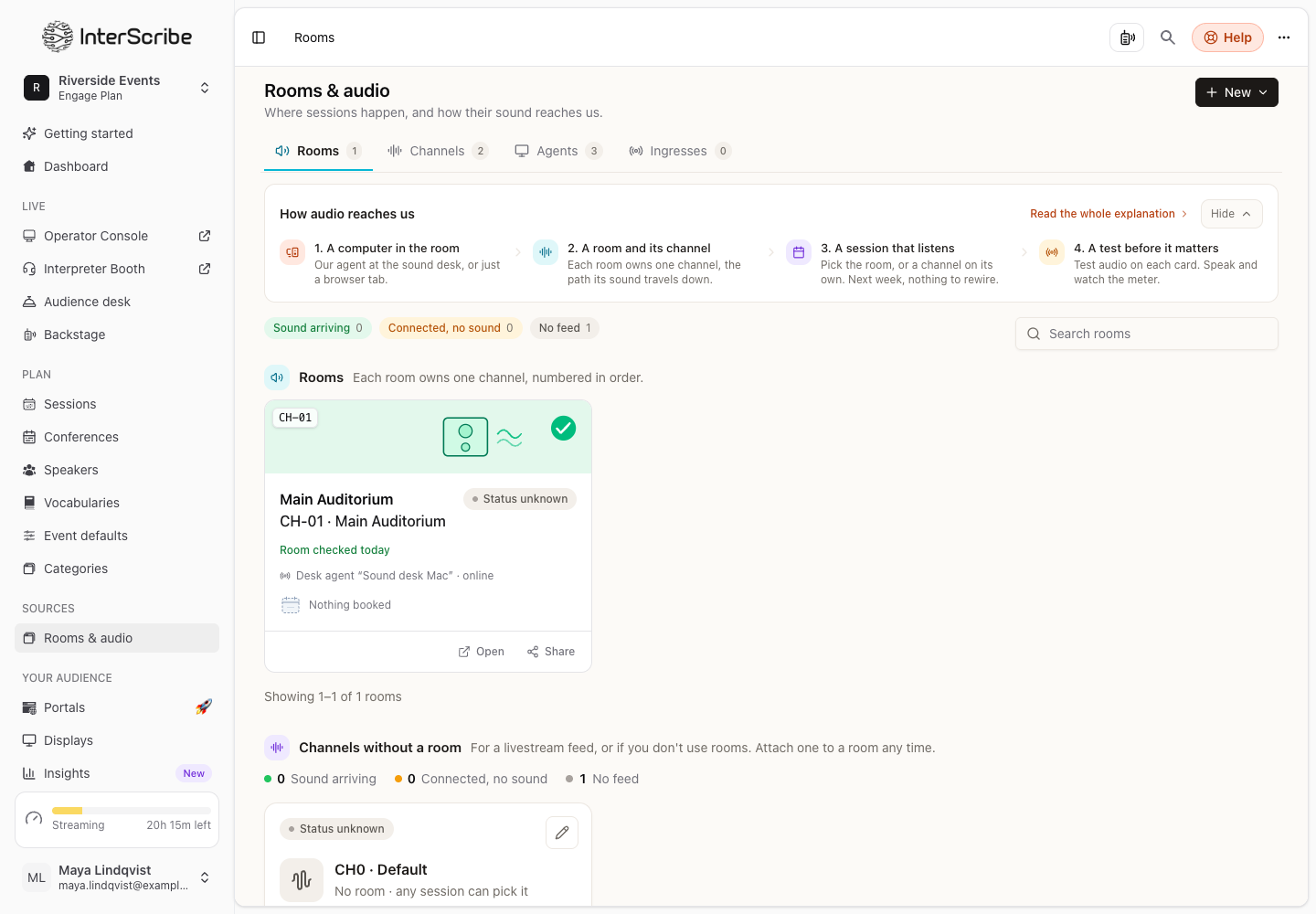
How channels are named and numbered
A room's channel has a number and the room's name, for example CH-03 · Main Auditorium.
- Numbers are given in order and never reused.
- When you rename the room, its channel follows the new name.
- When you delete a room, its channel stays, turned off, so its past sessions keep their history and its number stays used.
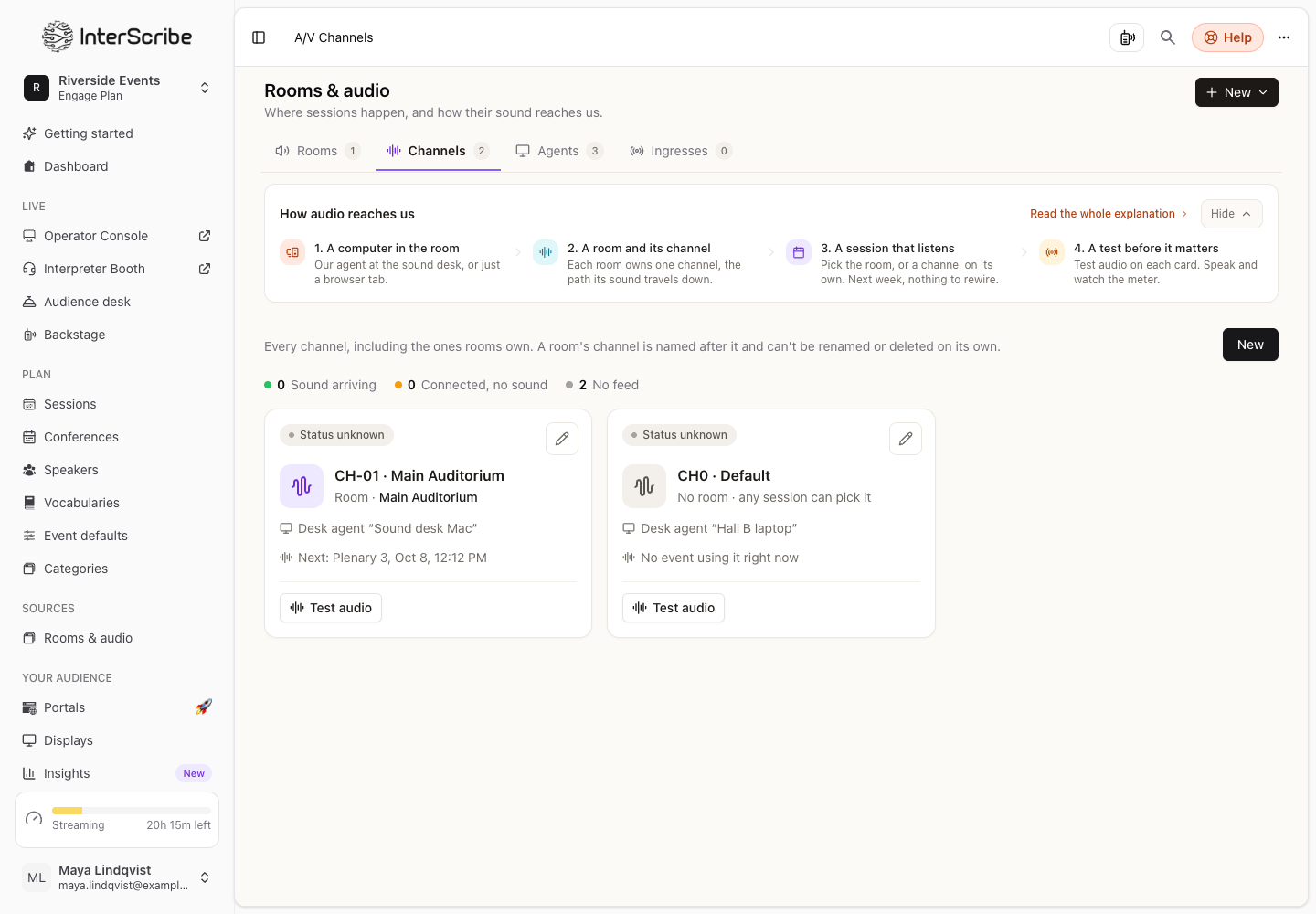
How a session uses the room's channel
When you choose a room on a session, the session's sound comes from the room's sound desk; no browser has to stay open. If you choose a channel that belongs to another room, the session moves to that room, so a session is never in one room on another room's channel. The form says so in a note with Undo.
A session in a room can also take its sound from a computer instead (Use a computer). It still takes place in the room and shows on the room's schedule, but the room's channel isn't used.
Check a room's sound
Open the room. The Audio card shows what the room hears and what sends it there, under Sources sending to this room.
- Select Check audio to hear whether sound arrives. You see We can hear it or No sound heard.
- Set up a desk agent or Add an ingress when nothing sends to the room yet.
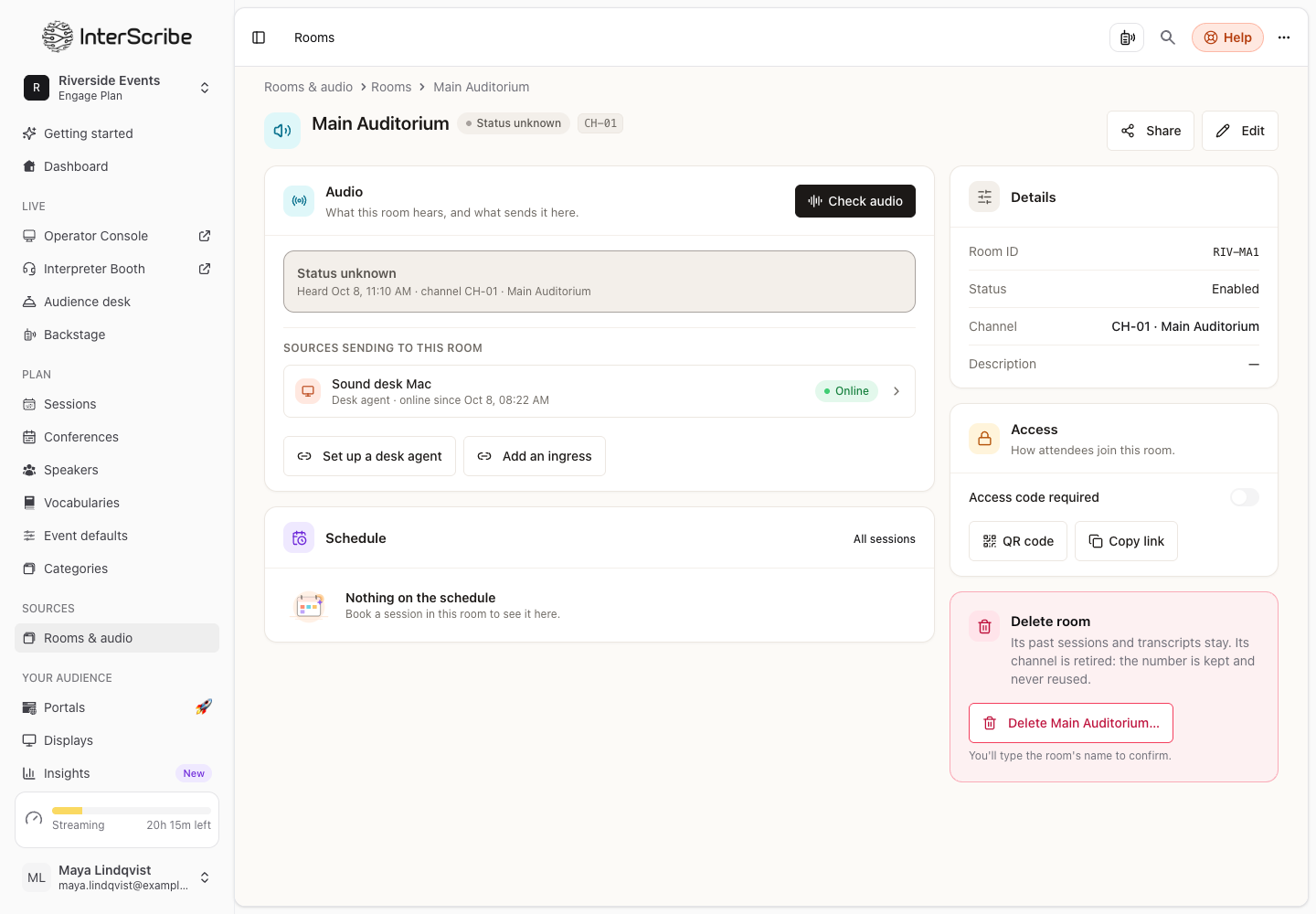
On Rooms & audio, each room shows one of Sound arriving, Connected, no sound or No feed.
Channels without a room
Channels without a room are for a livestream feed, or for when you don't use rooms. Attach one to a room any time.
If something goes wrong
If a room says No channel, sound has nowhere to go until it gets one. If the check says No sound heard, check that the sound desk channel isn't muted and that the agent listens to the right input.