
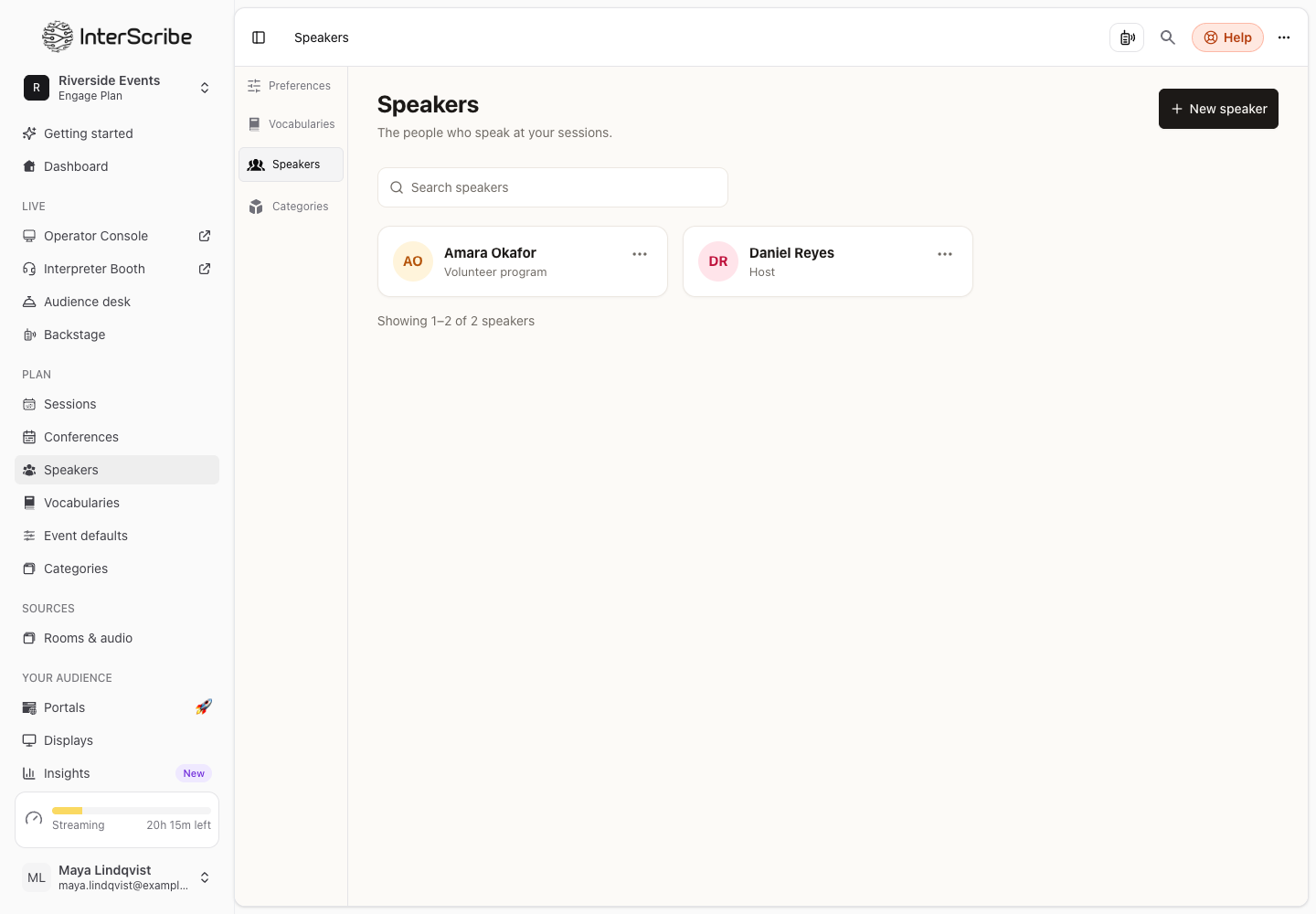
Speakers is one list of the people who speak at your sessions. Captions and your portals show who is talking.
Speakers · AvailableAdd a speaker
- STEP 1Open the listGo to Speakers in the sidebar and select New speaker.
- STEP 2Fill in the details
Type the Name and, if you like, the Organization. Add a Photo: a PNG, JPG or WebP image; a square picture works best.
- STEP 3Add what people read
Write a Short bio: it is shown on session pages. Under More: long bio, pronoun for captions you can add a Long bio and the Pronoun for captions. You can also set Languages, Categories and a Link.
- STEP 4SaveSelect Add speaker.
Add speakers to a session
In the session form, under Additional details, choose the speakers. To add several new people at once, select Add several speakers: type a name and press Enter for each one, or select Paste a list with one person per line and a comma between name and organization. They're saved to your Speakers list and added to this session.
If a name looks like a speaker you already have, the form offers Use the existing one.
Add speakers to a conference
On the conference's Speakers tab, search for one of your speakers, or create one without leaving the page. Sessions in the conference pick their speakers from this list. A schedule import matches the speakers it reads to the ones you have and suggests new ones.
Remove a speaker
Deleting a speaker removes them from the sessions that use them. You cannot undo this.