
Everyone on your team signs in with their own account. A role decides what each person sees and can change. Interpreters can have access to their booth and nothing else.
Before you start
- A role that can manage members, such as Admin or Super user.
- Seats on your plan. Members shows how many are left, for example 3 seats left on your plan, or Unlimited seats on your plan.
Invite people
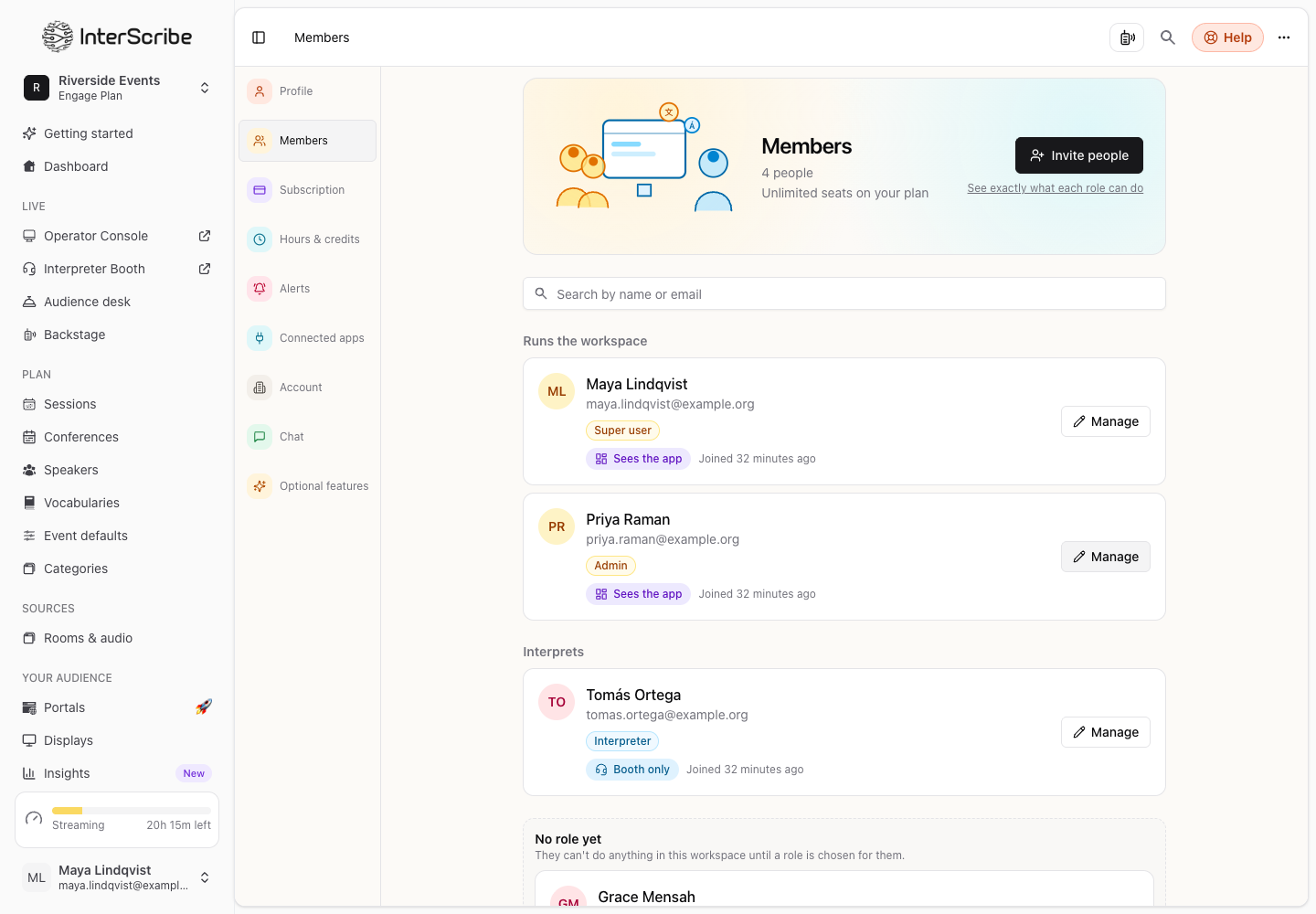
- STEP 1Open MembersGo to Settings › Members and select Invite people.
- STEP 2Choose what they'll do
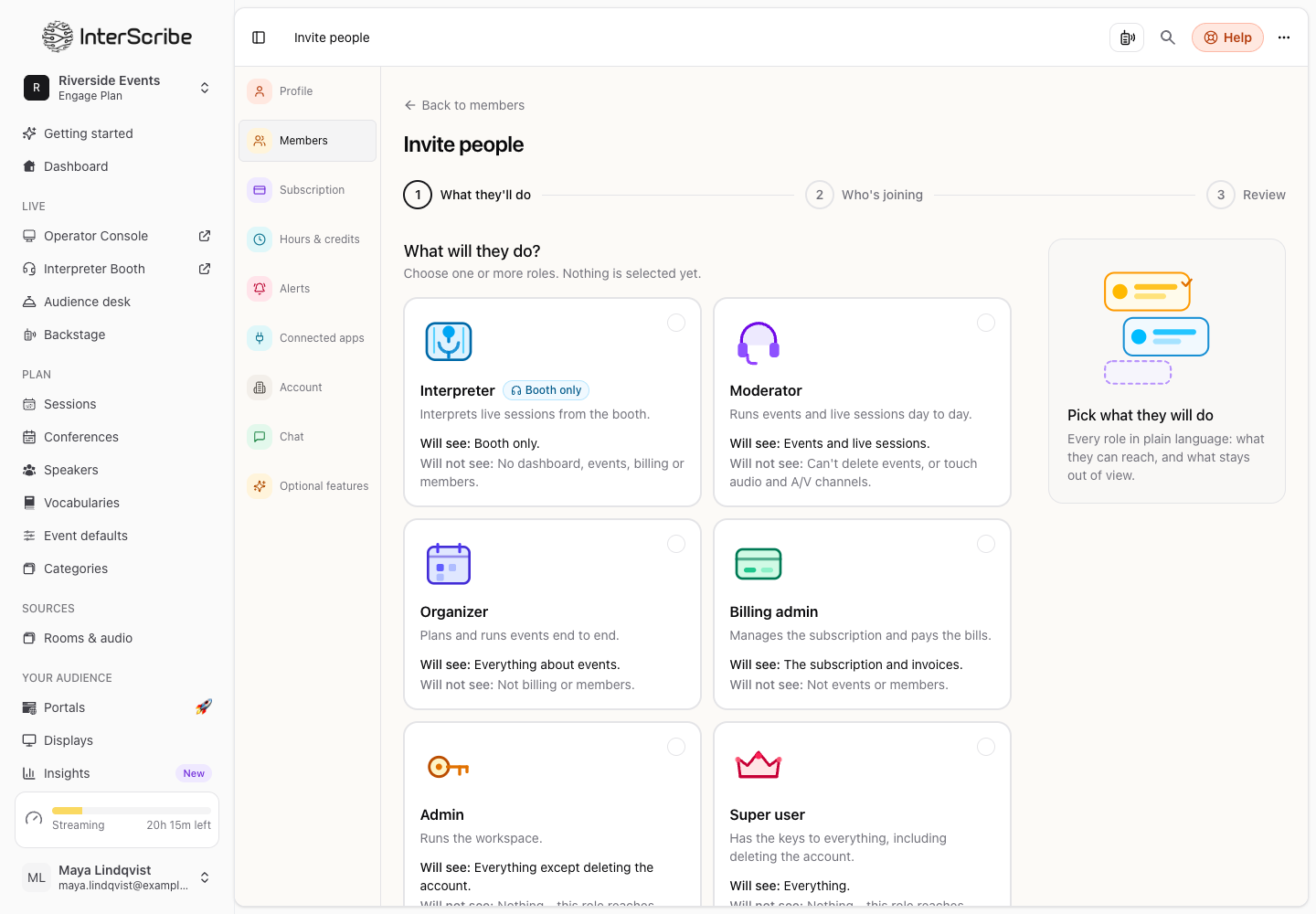
Under What will they do?, choose one or more roles. Each role says what they will see and what they will not see.
- STEP 3Add who is joiningType or paste email addresses, separated by commas, spaces or new lines.
- STEP 4Review and sendCheck They will see and They will not see, add a Personal note (optional), and select Send invitations.
They get an email with a link. Interpreters land straight in their booth. Until someone accepts, Members lists them under Waiting for a reply, where you can Revoke the invitation.
The roles
- Interpreter interprets live sessions from the booth. Sees the booth only: no dashboard, events, billing or members.
- Moderator runs events and live sessions day to day. Can't delete events, or touch audio and A/V channels.
- Organizer plans and runs events end to end. Sees everything about events, not billing or members.
- Billing admin manages the subscription and pays the bills. Sees the subscription and invoices, not events or members.
- Admin runs the workspace. Sees everything except deleting the account.
- Super user has the keys to everything, including deleting the account.
Select See exactly what each role can do on Members for the details.
Change or remove a member
On Members, select Manage next to a person, then Choose roles or remove them from the account. Members are grouped by what they do: Runs the workspace, Plans and runs events, Interprets, Billing, and No role yet for people who can't do anything until a role is chosen.
Rules that keep the workspace safe
- You cannot grant yourself a role.
- You cannot grant a role with permissions you do not hold.
- Only a Super user can grant or remove the Super user role, or change or remove a Super user.
- A workspace must keep at least one Super user. Make someone else a Super user first.