
Each person working a session has a role in it: who runs the audio, who interprets, who watches the room. You set it in the Console, on the session's People tab. A session with somebody at the desk has a person watching the captions while it is live.
Before you start
- Your team has accounts on your workspace. Invite them from Settings › Members: see Members and roles.
- Invite interpreters with the Interpreter role. Your plan must include interpreters: see Human interpreters.
Who is on the People tab
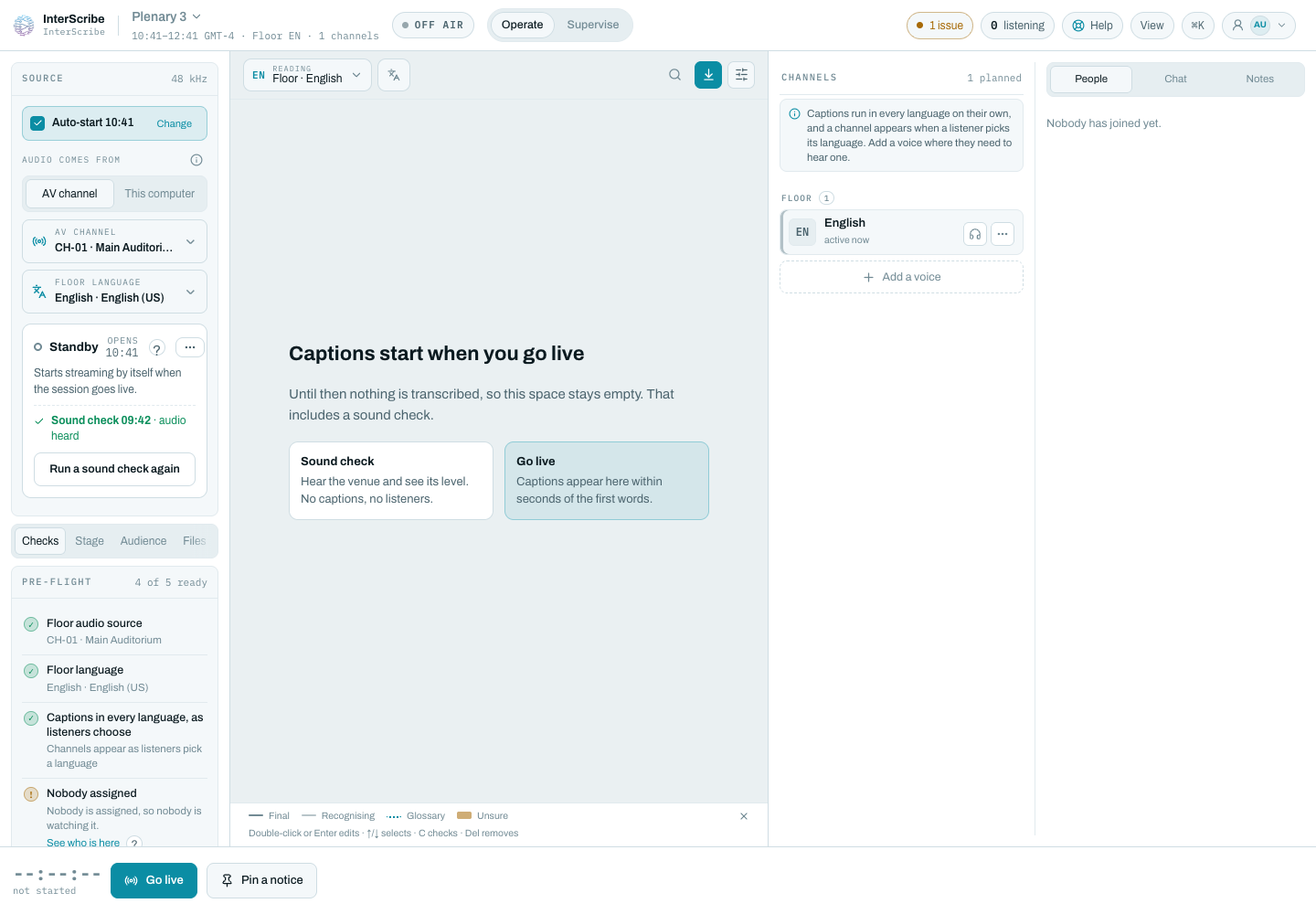
People lists the people on this session: the people booked on it, the person who started or created it, and every interpreter holding a language channel in the booth. When nobody is there yet, it reads Nobody has joined yet.
Give someone a role
- STEP 1Open PeopleIn the Console, select the People tab. From pre-flight, See who is here opens it too.
- STEP 2Open their roleSelect the role under the person's name. The menu lists what they can be in this session.
- STEP 3Choose the role
Choose Audio operator, Interpreter, Moderator, Speaker or Observer. Each one says what the person does.
- STEP 4ConfirmThe Console asks, for example, Make Ana an audio operator? Select Change the role.
The roles in a session
- Audio operator runs the source, transcription and the transport.
- Interpreter holds a language channel from the booth.
- Moderator watches the room and the audience questions.
- Speaker is on stage: the floor audio is theirs.
- Observer can watch, and cannot change anything.
A session role changes what the person can do for the rest of the session. It does not change their account or their workspace role.
Assign interpreters
Make the person an Interpreter. They can then join the booth and take a free language channel there: see Interpret from the Booth.
Who can assign an audio operator or a moderator
An Audio operator or a Moderator can moderate the session's chat. Only someone who can already moderate the session can give a person one of these two roles, and nobody can give it to themselves first.
Check it worked
The person's row shows the new role. Before go-live, pre-flight shows Nobody assigned when the session has nobody at the desk: nobody started or created it, and nobody on it is an Audio operator. Once you assign one, the item clears. You can go live with warnings, so the session can still start without one.
If something goes wrong
People lists only the people already on the session. An interpreter appears there once they take a channel in the booth. For interpreters who cannot hear the room, see The interpreter can't hear the floor.