

The booth in InterScribe Studio works like the Interpreter Booth in the Portal: you hear the floor, take a language channel, and your microphone becomes what that language's listeners hear. This page covers the steps in the app, and what is particular to a phone or iPad.
Before you start
- Sign in to Studio with an account that has the interpreter role. See Get InterScribe Studio and sign in.
- Use headphones, so your microphone does not pick up the floor. See Set up your booth audio.
Find your booth
On Today, Your booths today lists the sessions you are booked for, with Enter the booth. Under Need an interpreter, each session that needs one of your languages has Take it. If you can both run sessions and interpret, set What Today shows to Interpret.
Enter the booth
- STEP 1Choose the session
Which session are you interpreting? lists today's sessions in the workspace. The ones you are booked for come first. Select one, then Continue.
- STEP 2Choose the language
Which language will you interpret into? shows what you will hear and what you will speak. Each language says what taking it means: Take it when nobody is on it or the AI voice is (taking it replaces the machine), or Standby when a colleague is live and you would join behind them. If your language is not listed, you can add it or ask the team for it.
- STEP 3Check your sound
Check your sound shows your microphone and headphones and a level bar. The check is private. If it hears nothing, you can pick another microphone, keep checking, or Enter without a check.
- STEP 4EnterSelect Enter the booth.
Go on air
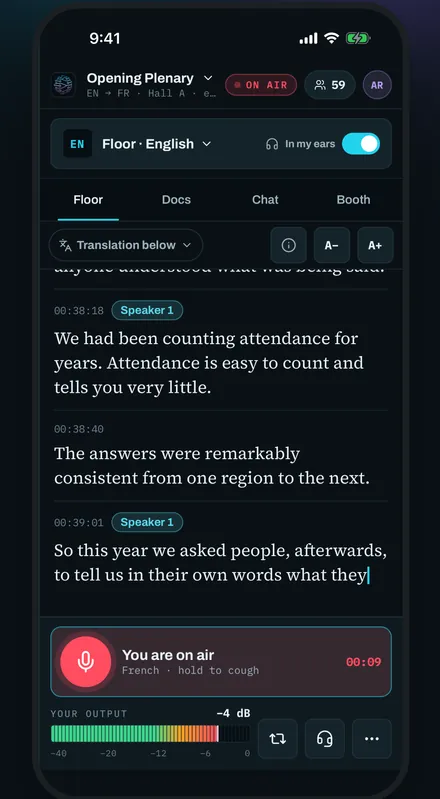
You always arrive muted: nothing reaches listeners until you open the microphone. Tap the microphone, Microphone closed, and it says You are on air. Hold it to cough: your microphone is muted while you hold.
If the workspace records its sessions, the booth tells you Recording started and that your voice is kept with the recording.
Under You hear, choose what plays in your headphones: the floor, a booth, or the room only. In my ears turns the floor sound on and off. Turning it off changes only what you hear: listeners still hear you.
On a locked screen, the lock screen and the Dynamic Island show that your booth is on air, with Hand over and Mute. If they do not show, Live Activities are off for Studio in Settings.
After 30 seconds on air, pocket mode turns the screen black to save battery. The microphone is not affected. Double-tap to wake the screen. You can turn it off in Me.
Hand over
- STEP 1Open Hand overSelect Hand over, next to the microphone. The sheet is called Hand over and your language.
- STEP 2Pick who takes itChoose a colleague. Someone who is not connected shows as Offline.
- STEP 3Offer itSelect Offer it. You stay on air until they accept.
Under If nobody is free, you can choose Switch your language to the AI voice: a machine voice speaks the language until a person takes it. The sheet shows how many AI voices the session has left.
When a colleague asks for your channel, the booth shows who is asking and a countdown. Select Hand over now or Keep it. If you do neither, the channel moves to them when the countdown ends.
When something interrupts
- A call comes in. You stay on air while it rings, and declining changes nothing. If you answer, your microphone closes before the call connects, so listeners never hear the call. A colleague on standby is offered your language straight away, and if nobody takes it within 30 seconds, the AI voice covers it until you are back, when the session has it. When the call ends, Studio asks whether you want the language back: Ask for it, or Stay on standby.
- The network drops. Studio shows Network lost, and listeners cannot hear you. When you are back, it tells you whether the language is still yours. If a colleague took it, you can Ask for it back.
- A headset disconnects. Studio closes your microphone, so the device's speaker does not feed the room back into your language. Pick where you hear the floor and select Open my mic on it when you are ready.
- The battery runs low. Studio shows Battery and its percentage, with Plan a handover. At 2 %, if you are alone in the booth, the channel is not left unattended: depending on the session, the AI voice takes over or listeners' devices read the captions aloud. The battery notice says which.
Leave the booth
Open More in the booth and select Leave booth. Your channel is freed and your microphone closes. Listeners hear the floor until someone takes the channel, so hand over first if you can.
The back swipe is turned off inside the booth on purpose, so a live microphone is not left by accident.
If something goes wrong
- The interpreter can't hear the floor
- Ask your organizer for help from Backstage: see Backstage requests.