

The console in InterScribe Studio does the same job as the Operator Console in the Portal: you check the sound, go live, watch the languages and end the session. This page covers what is different on an iPhone or iPad.
Before you start
- Sign in to Studio with an account that has the operator role. See Get InterScribe Studio and sign in.
- The session has to exist. You create sessions on the web, not in Studio: see Sessions and recurring sessions.
Open the console
- STEP 1Find the session on Today
Today lists the day's sessions: the ones on air, then Still to come. If you can both run sessions and interpret, What Today shows switches between Run sessions and Interpret.
- STEP 2Open itSelect the session, then Open the console.
To set up a session from the app, select New session on Today. Studio opens the Portal's new-session page in its in-app browser; select Continue to stay signed in, then fill in the session there. Close the browser and pull down on Today to refresh the list.
To switch to another session, select the session's name at the top of the console. Leave this session takes you back to the day and leaves the session as it is: it stays on air without you.
Choose where the sound comes from
On the Session tab, Source has Audio comes from, with two choices:
- AV channel: the room's agent or encoder. Choose the channel under Which AV channel.
- This phone, or This iPad on an iPad: the device's own microphone becomes the floor.
The second choice has its own page: Send the room's sound from a phone or iPad.
Run a Sound check before you go live. With an AV channel it checks the sound only, and there are no captions until you go live. With the device's microphone it checks that microphone only, and nobody hears it until you go live.
Session checks lists what still needs you, for example Floor audio source, Floor language and Somebody at the desk. It says Ready, or how many items are to fix.
Go live
Hold Hold to go live for half a second. Going live starts captions, voices and the timer.
Under Start, the session's How it starts says whether it starts by itself (Auto), when you start it (Manual) or when a guest opens captions (On demand).
If no AV channel has audio when you go live, Studio asks Where should the floor come from? You can use this phone's microphone, wait for an AV channel, or go live on the channel that has no audio yet.
While you are live
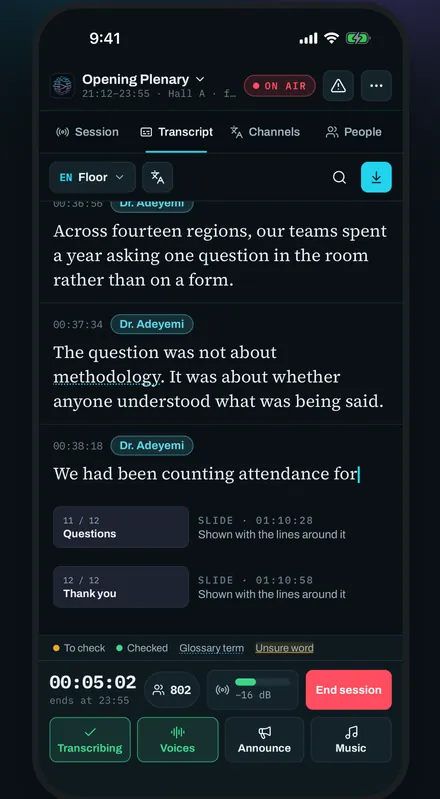
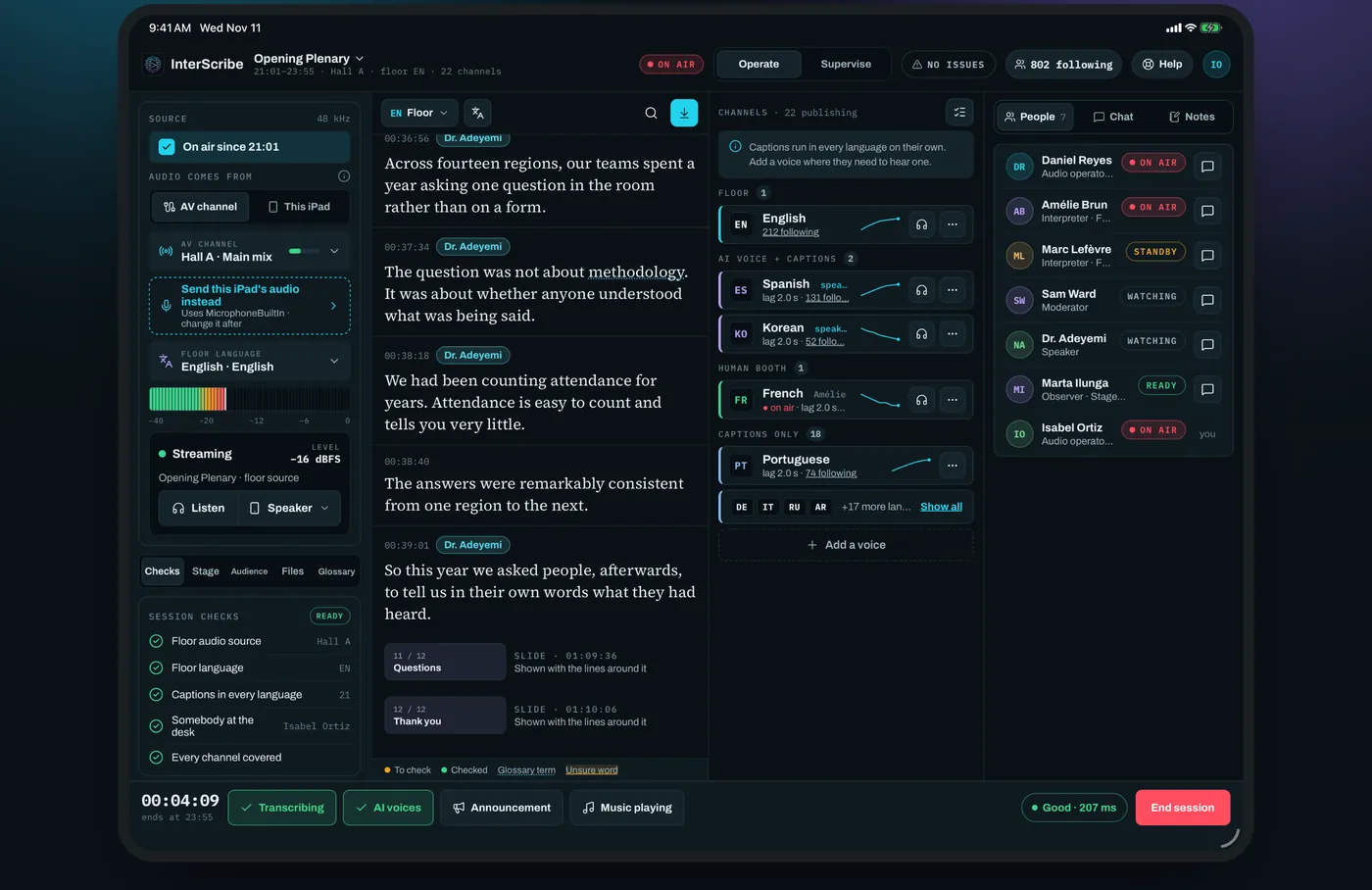
- Channels lists each language with how many are following it, grouped as Floor, AI voice + captions, Human booth and Captions only. The bar at the bottom shows how many are following the session in all.
- Transcript shows the lines as they arrive. Select a line to open its actions, for example Edit, Mark checked or Remove.
- Announce sends a card to your audience's screens. Choose Pin it to keep a notice up until you unpin it: pinned notices are listed under Pinned on your audience's screens, with Unpin for each and Unpin all. See Pin a notice.
- Transcribing and Voices pause and resume transcription and the AI voices. Each asks before it pauses.
- Listen plays the floor back to you. It never changes what listeners hear.
On an iPad the Source, the transcript, the channels and the people fit on one screen.
End the session
Select End session. Studio shows what ends: the people following are disconnected, the channels stop, interpreters lose their booths and the transcript closes. Hold Hold to end the session for half a second to confirm. Select Keep it running to cancel.
After it ends, Studio shows a summary and offers Resume session (hold to put it back on air) and Send a note to thank the crew.