
🎙️ Overview
For events that demand professional sound quality, using a USB audio interface or mixer gives you better control over levels, clarity, and routing. These devices allow you to connect high-grade microphones and mix multiple inputs into a single audio stream for InterScribe.
Common use cases include:
- Worship services with a soundboard feed
- Multi-speaker panels
- Classroom or hybrid environments with multiple mics
This setup works seamlessly with both the Streamer Dashboard and Desktop Streamer Agent.
🪜 Step‑by‑Step Instructions
-
Choose your hardware
-
Select a USB audio interface or mixer with USB output. Examples:
- Focusrite Scarlett Solo / 2i2
- Behringer U‑Phoria UM2 / UMC22
- Yamaha MG10XU (USB mixer)
-
Confirm support for your microphone types (phantom power for condensers, etc.).
-
-
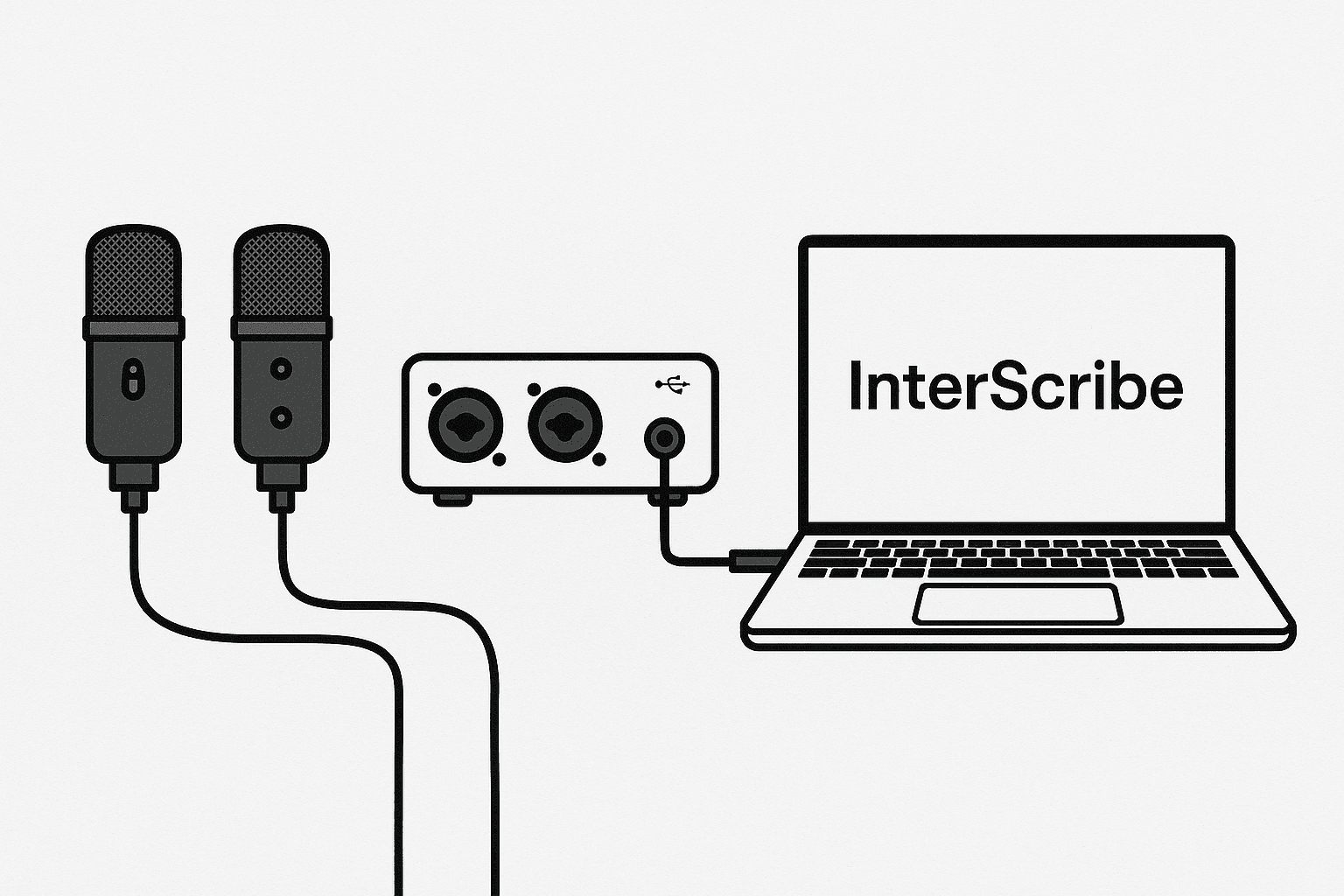
Connect your audio sources
- Plug microphones, instruments, or auxiliary outputs into the interface’s XLR or ¼‑inch jacks.
- For soundboard feeds, use line-level outputs (e.g. AUX send or main out).
- Use a DI box or isolation transformer to eliminate ground loops.
-
Connect the interface to your computer
- Plug in via USB using the provided cable.
- Install drivers if your device requires them (Windows systems especially).
-
Configure audio in InterScribe
- Launch the Streamer Dashboard or Desktop Agent.
- Choose the USB interface from the Audio Device dropdown.
- Watch the input meter while speaking or playing sound to ensure clean levels.
-
Start streaming
- Click Connect Audio.
- Use your mixer to balance levels from multiple sources. All signals should be mixed into a single mono or stereo output routed to InterScribe.
✅ Tips & Best Practices
- Use balanced cables (XLR or TRS) to reduce noise and interference.
- Gain staging matters. Set levels so peaks stay around –6 dB on your interface meter. Avoid the red.
- Monitor with headphones. Plug into your interface to check clarity and mix in real time.
- Watch for hum or buzz. Isolate devices on the same power strip or use a ground‑lift adapter.
- Label your channels. For larger setups, color code or mark each input to reduce mistakes.
- Mono is best. InterScribe does not process stereo differently — use a mono mix or ensure both L/R carry the same signal.
🖼️ Visual Aids
📸 Diagram – Interface Connection
🛠 Troubleshooting / FAQs
| Issue | Cause | Solution |
|---|---|---|
| Device not detected | Missing drivers or bad cable | Reconnect USB, switch ports, or install drivers from the manufacturer. |
| Clipping/distortion | Gain too high | Turn down gain knobs; aim for green/yellow signal meters. |
| Buzz/hum noise | Ground loop | Use a DI box or lift the ground; power all devices from a common outlet. |
| Left/right imbalance | Stereo signal not summed | Set mixer/interface to output mono or pan all channels center. |