
Your audience opens the session on their own phone or computer. They need no account to read captions or listen. You hand out one of three things: a link, a QR code or a code to type.
Before you start
- You can open the session's page in the Portal.
Share the session
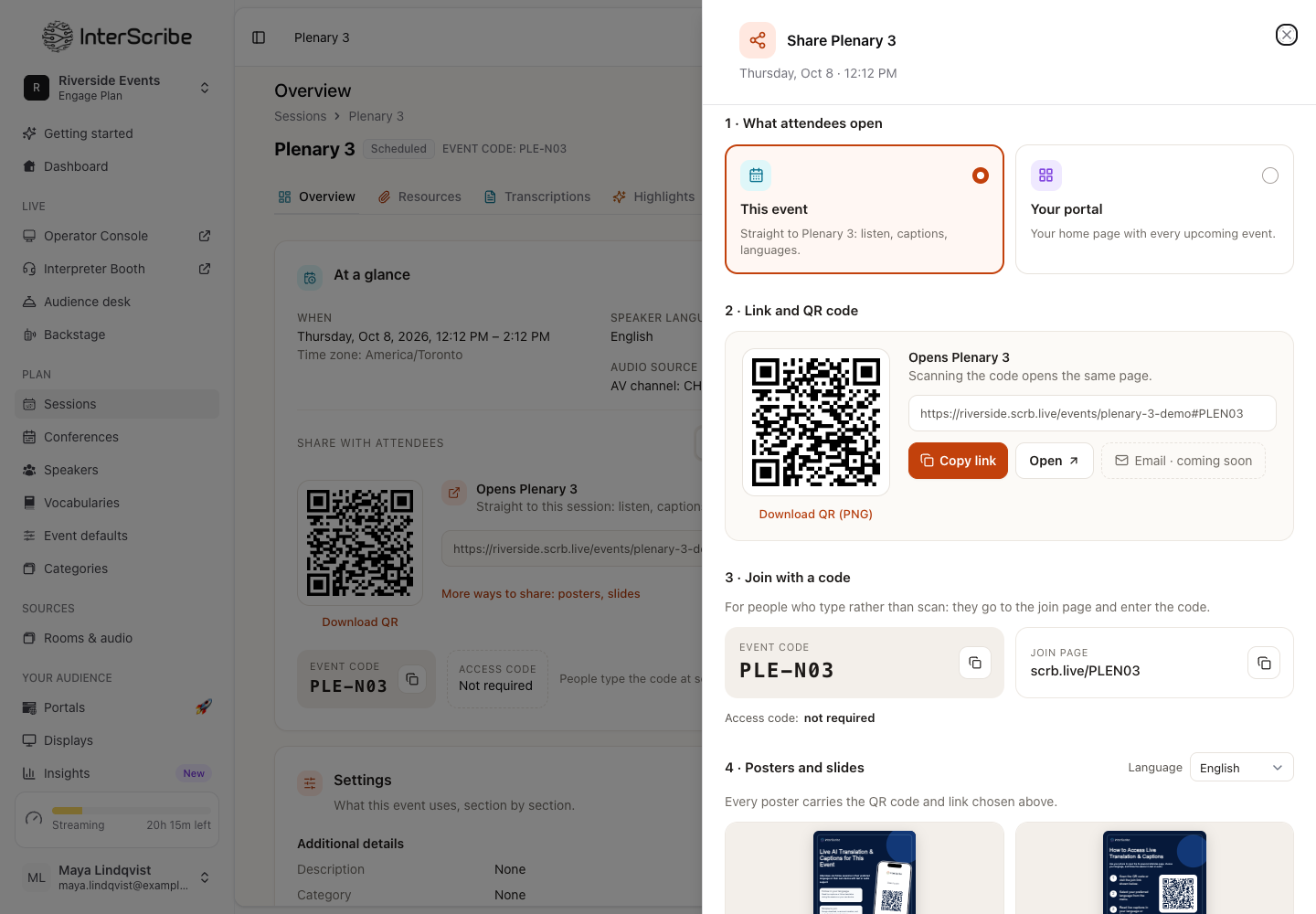
- STEP 1Open ShareOn the session's page, select Share. You also find Share in the actions menu of each session in Sessions.
- STEP 2Choose what attendees open
Under 1 · What attendees open, choose This event to send people straight to the session, or Your portal to send them to your home page with every upcoming event. For a repeating session, Link the whole series (always opens the next date) gives one link for every date.
- STEP 3Copy the link or the QR code
Under 2 · Link and QR code, select Copy link, or Download QR (PNG) to print the code or show it on a screen. Scanning the code opens the same page.
- STEP 4Give the code to people who type
Under 3 · Join with a code, copy the 6-character Event code and the Join page. People go to the join page and enter the code.
- STEP 5Print a poster
Under 4 · Posters and slides, download an Announcement poster, an Instructions poster, an Instruction sheet, a Presentation slide or Portal access cards. Every poster carries the QR code and link you chose above.
Ask for an access code
An access code keeps a session for the people you give it to. In the session's Access settings, turn on Requires an access code and enter a code of 6 letters or numbers.
People with the access code join through the Join page or your portal, where they enter the event code and the access code. The direct link and the QR code do not ask for the access code: opening them goes to an access-denied page instead. Hand out the join page, the event code and the access code together.
On your portal, a session that needs a code shows Access code required. The Share panel shows the code under Access code, or not required.
Join from the app
In the InterScribe app, a listener enters the 6-character event code from the host, or selects Scan QR code, then Access Session or Event. When the session needs an access code, the app asks for it as Pin Code. See Listening on a phone.
Check it worked
Open the link yourself before the event. You see the session's page with its status: Scheduled before it starts, Live while it runs and Ended afterwards.
If something goes wrong
- The page says This event has ended: the session is over. When another event is available now, the page offers Join next event.
- The app says Invalid access code or pin. Please try again.: the access code (Pin Code) is wrong.