

If your venue hosts events, set it up once and every event can reuse it. You add each room, put an agent on the computer at its sound desk, test the sound and brief the people who run the desk.
Rooms and their AV channel · AvailableBefore you start
- A role that can manage rooms and audio channels, such as Admin.
- For each room, the computer at its sound desk, with the room's sound connected to it. See Get good audio into InterScribe.
Steps
- STEP 1Add your rooms
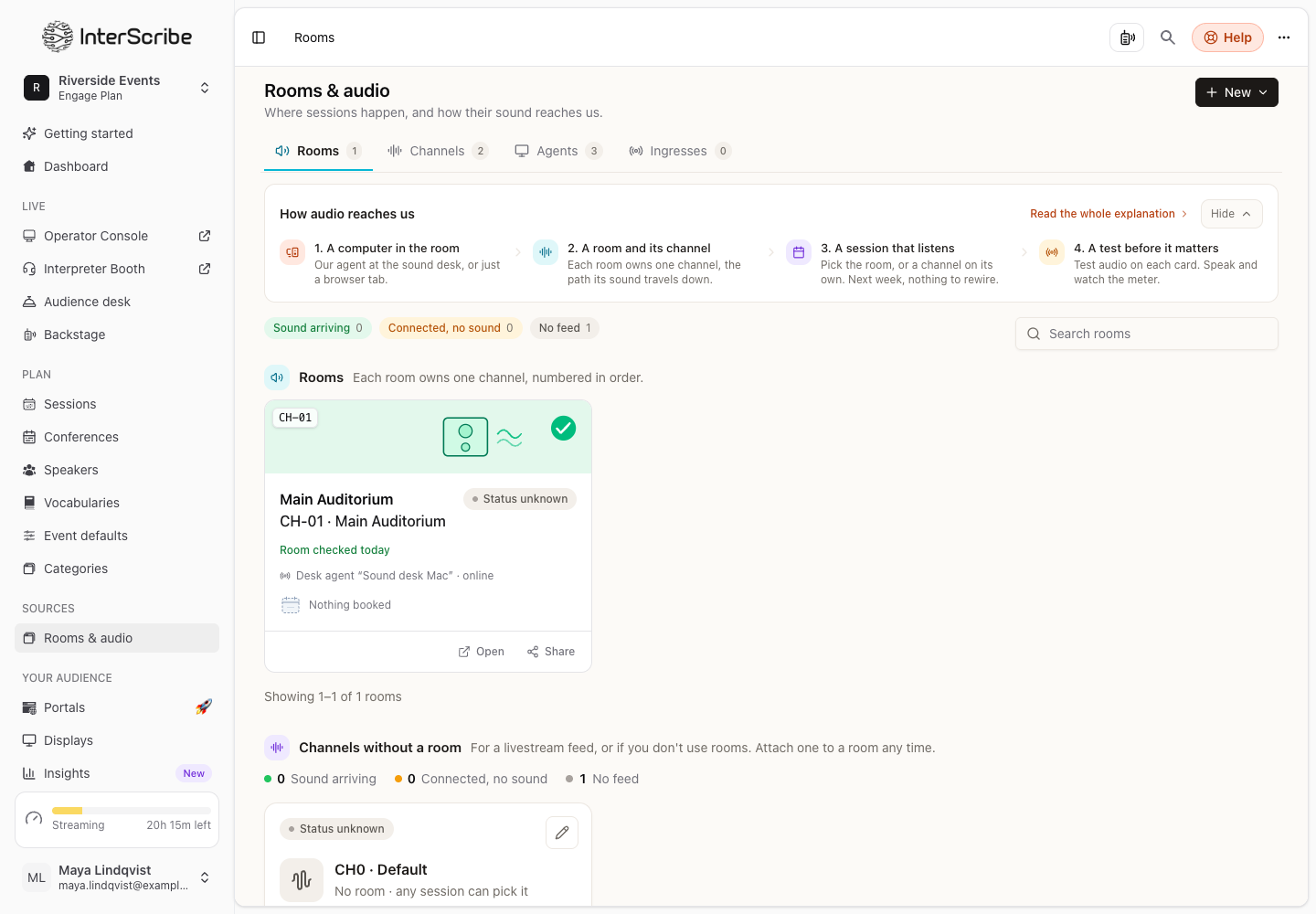
Go to Rooms & audio, select New and choose Room. Type its Name and select Create. Each room gets a channel of its own, numbered in order: CH-01, CH-02 and so on. See Rooms and their AV channels.
- STEP 2Install the agent on each room's desk computer
On the desk computer, download and sign in to the InterScribe Agent, then choose the room's channel and the microphone that hears the room. Repeat on the desk computer of every room. See Set up the desktop agent.
- STEP 3Test the audio in every room
Open the room and select Check audio on its Audio card. You see We can hear it or No sound heard. On the Agents tab, Test audio on the agent's card does the same check from the agent's side.
- STEP 4Print a status sticker for each desk
Open the agent, then its Status page tab, select Create status link and then Print sticker. Stick it on the desk: anyone who scans it sees whether the agent is connected and whether the room is on air. See Put a live status sticker on an agent.
- STEP 5Brief your AV team
Go to Settings › Members, select Invite people and choose the roles your team needs. Give each desk the printed Sound desk checklist. See Members and roles.
Check it worked
On Rooms & audio, each room shows Sound arriving while its desk sends sound. On the Agents tab, the agent's card shows Sending while sound goes out.
Rules worth knowing
- One channel per room. A session in a room takes its sound from that room's channel. A session is in one room at most.
- Only one device sends while a session is live. Several agents can be set to the same channel. While a session on that channel is live or paused, a second connected agent that sends audio is refused, and the web agent says Another computer already sends this room's audio. When no session is on air, two devices can be set to the same channel.
- Agents stay in your workspace. Rooms, channels and agents belong to the workspace they were created in, and another workspace cannot use them. The agent stays signed in to the workspace you chose when you signed in.