
A session is one event your audience joins: a talk, a lecture, a meeting or any other gathering. A session can also repeat, as a series of dates that share their settings.
Sessions, recurring sessions · DisponívelBefore you start
- Create the room the session takes place in, if you use rooms. See Rooms and their AV channels.
- Check your Event defaults: everything you do not set on the form starts from there.
Create a session
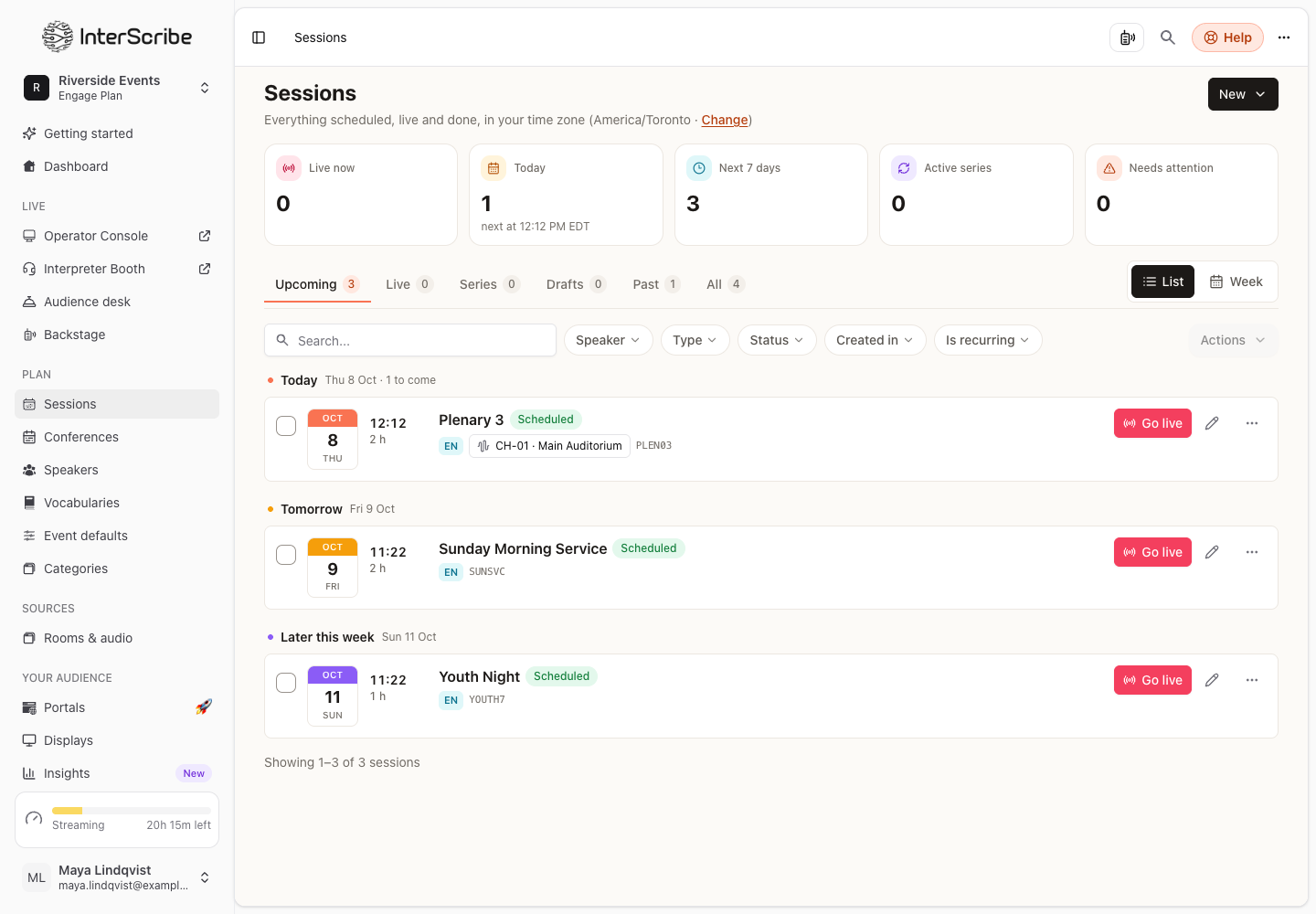
- STEP 1Open the formGo to Sessions, select New and choose Event.
- STEP 2Fill in the essentials
Under The essentials, type the Session name and choose When. Only these are needed to create the session.
- STEP 3Choose the room
Under Room, choose a room, or select No room. Each room brings its own AV channel, so the session's sound follows the room.
- STEP 4Choose the language
Under Speaker language, choose the language people speak at this event. You can change it during the stream.
- STEP 5Check the audio source
Audio source says where the sound comes from once the session starts: the room's channel, another AV channel, or Computer (web browser).
- STEP 6Create itSelect Create session to publish it, or Save as draft to keep it hidden.
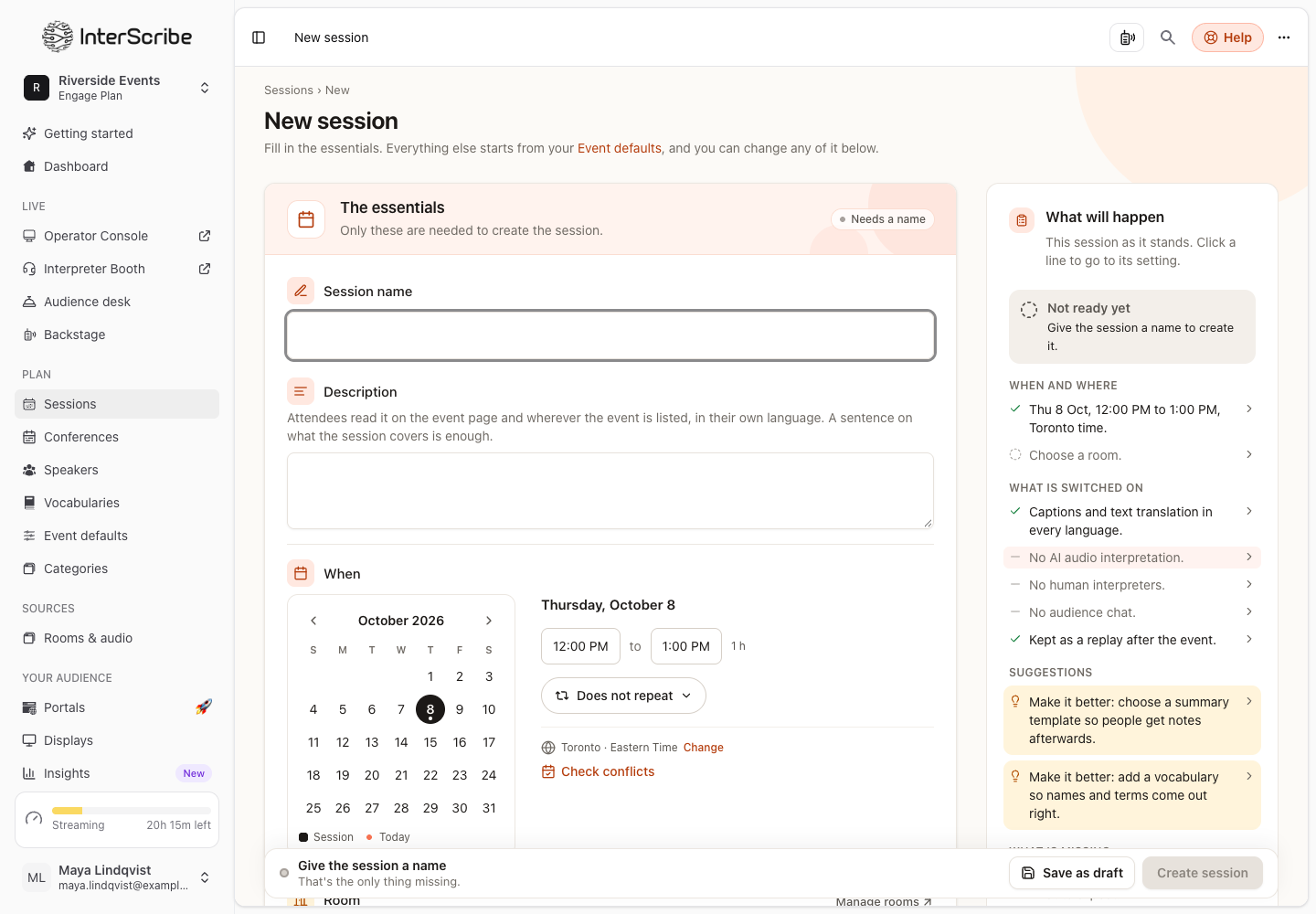
The What will happen panel beside the form reads the session back to you: when and where, what is switched on, who can see it, and what is still missing. Click a line to go to its setting.
The rest of the form
Below the essentials, each section starts from your Event defaults:
- Additional details: speakers, category and tags. See Speakers.
- Captions & translation: settings that help the engine get your words right. See Glossary and context.
- Interpretation: your own interpreters and AI voices. See AI voices and Human interpreters.
- Access: who can join, where the event is listed, and its link.
- Video & replays: video shown next to the captions, and what replays include.
- After the event: what is produced when the event ends.
- More options: settings most events never need to change, such as Auto-start, which starts the event at the scheduled time.
Make it repeat
Under When, use Repeats and choose Daily, Weekly or Monthly. Set how often under Every, pick the days for a weekly series, and choose the date it runs until. The form shows how many sessions the series creates, and the button reads, for example, Create 12 sessions.
When you save a change to a repeating session, choose This event only or This and all future events.
Room and audio clashes
A room, or the sound that comes into it, can serve only one session at a time. When the session overlaps another one in the same room or on the same audio, the form shows the clash and Check conflicts. Move the session, or choose another room or audio, before creating. Create is refused until every clash is resolved.
Published, draft or disabled
- Published: attendees can find and join it.
- Draft: nobody can join it yet.
- Disabled: nobody can join it.
Only published sessions can be joined.
Check it worked
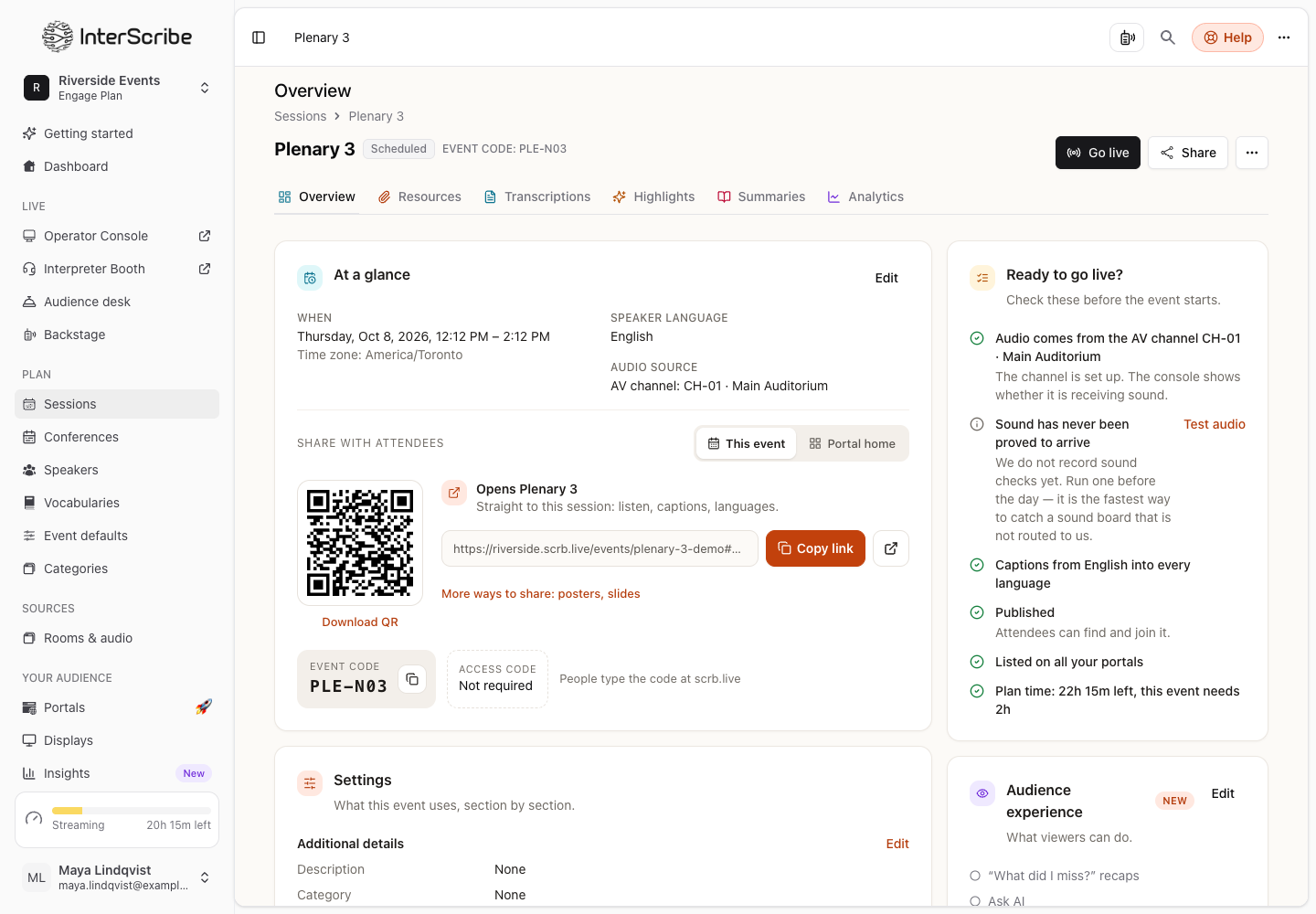
The session's page shows Ready to go live? with the audio source, captions, languages, who can see it and the plan time it needs.
Rooms and their AV channels · Languages · Inherited settings · Events and conferences