
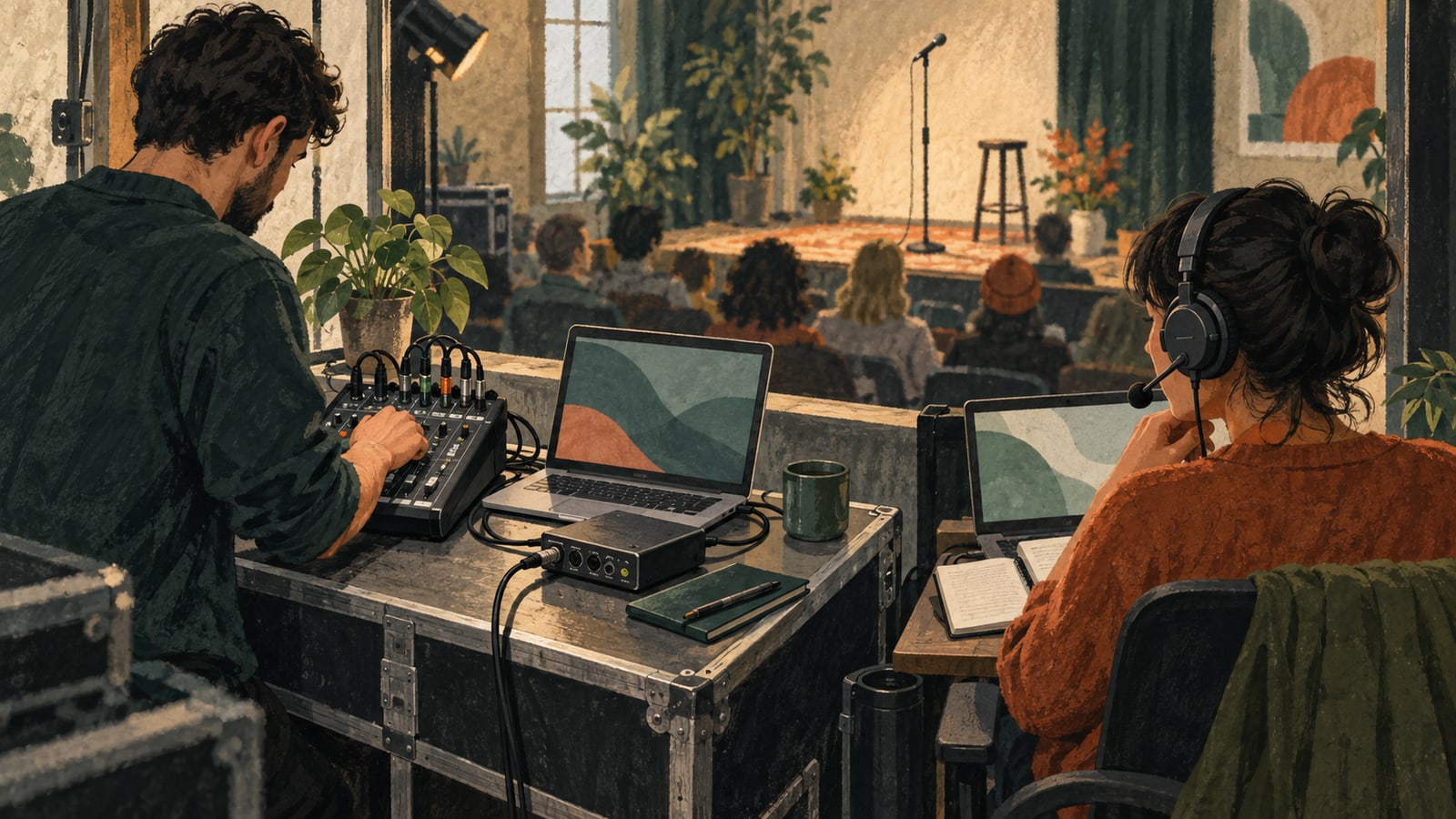
“The microphone works” can mean two very different things. The room can hear the speaker through the PA, or the streaming computer can receive a clean feed. At an event, you need to verify both.
Another distinction matters once the sound reaches the browser: a processed mixer feed and a person's headset should not automatically receive the same treatment. Choosing the wrong capture settings can make troubleshooting harder, particularly when several devices have similar names.
Here is a sound check built around what you can actually hear.
Identify the source before choosing the setting
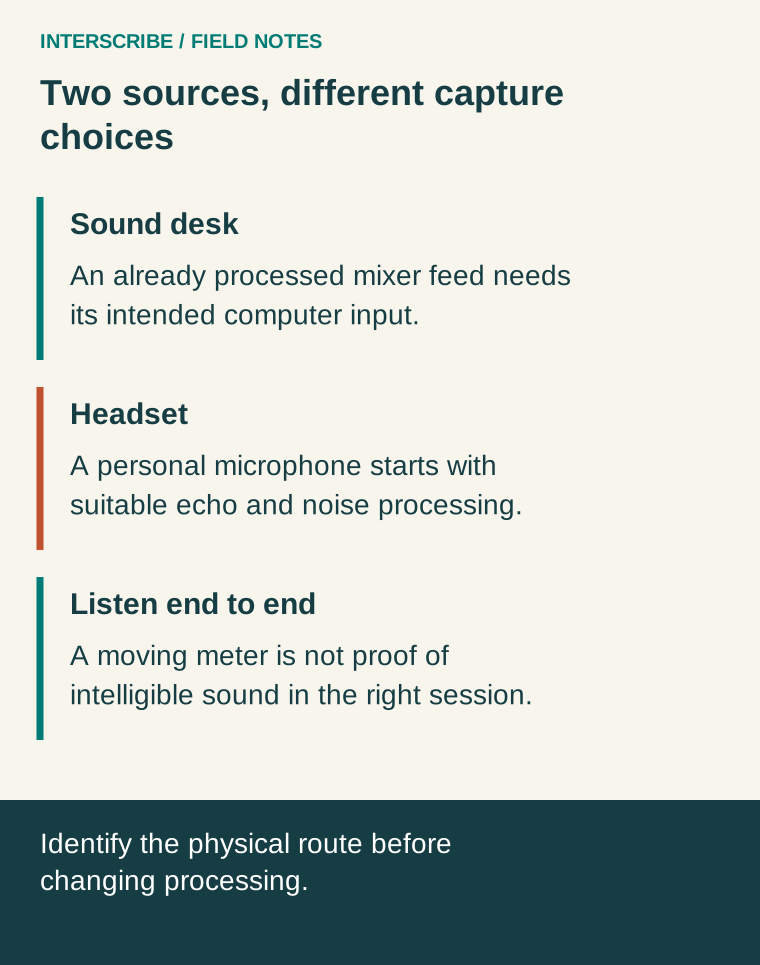
A sound-desk feed normally reaches the computer through an audio interface or another mixer connection. The desk has already shaped that sound. A headset microphone captures one person's voice directly, often in a less controlled environment.
In the documented Console and Booth controls, Microphone type offers Sound desk and Headset. Sound desk disables echo cancellation, noise suppression, and automatic volume. Headset enables echo cancellation and noise suppression while leaving automatic volume off. The microphone monitoring guide explains these choices and their individual overrides.
These are browser capture controls. Do not assume every hardware device or agent has an identical menu. For a desktop agent receiving a mixer, follow getting good audio into InterScribe to select the actual input.
Check the physical route first
Ask the sound technician to identify the output feeding the computer. A channel can be audible in the room but absent from that output. Audience microphones, a guest laptop, and a lectern may follow different routes.
Speak into each source separately while watching the receiving meter. Then listen. A moving meter confirms activity, not intelligibility. Hum, room echo, clipped speech, or the wrong microphone can all produce movement.
Use specific device names in the run sheet: “USB interface, input 1” is more useful than “external mic.” If you reconnect equipment, verify the selected input again rather than assuming the browser chose it correctly.
Run one passage through the whole system
Try this sound-check script:
“This is the lectern microphone. Our next speaker is Maya Chen. We will meet in Room Four at eleven fifteen. I am speaking quietly now. I am back at my normal speaking volume. I will pause, then hand over.”
The names and numbers are deliberate. They make omissions or distortion easier to notice. They are not an accuracy benchmark. Repeat from the handheld microphone and any computer-audio source that will be used.
Have a separate listener confirm the received sound or captions. The operator hearing a local monitor does not prove that the intended session is receiving the same feed.
A worked fictional setup
A church team connects its mixer to a laptop through a USB interface. The room sounds clear, but the laptop initially uses its built-in microphone. Captions appear, so the team almost misses the problem. They contain room reverberation and comments from beside the laptop.
The technician speaks into the lectern while another volunteer talks near the computer. Listening reveals the wrong source. Selecting the interface solves the routing problem; switching noise filters would not have fixed it.
In a separate rehearsal, an interpreter uses a headset in a quiet room. Headset processing is a reasonable starting point. The interpreter and a test listener compare a normal passage before adjusting anything else. They change one setting at a time and record whether the result improves.
Make adjustments before the live segment
Changing microphone type or microphone device while live can briefly interrupt capture. Use rehearsal time for comparison. If a change becomes necessary during an event, coordinate a pause or handoff rather than experimenting through an important sentence.
The stronger Extra noise filter described for headset capture uses additional computer resources and may not be available in every browser. More processing is not automatically better. Start with the appropriate preset, then address the actual audible problem.
Do not raise several volume controls together. Ask which stage is too quiet: microphone, desk output, interface, browser capture, or listener playback. Correct that stage and listen again. A louder distorted signal is still distorted.
Keep this handoff beside the desk
| Check | Evidence to record |
|---|---|
| Correct input | Exact selected device and mixer output |
| All microphones included | Lectern, handheld, questions, and media tested separately |
| Appropriate processing | Sound desk or Headset; any intentional override |
| Listening test | Name of tester and what they heard |
| Session route | Correct room/channel and attendee page verified |
| Change authority | Person allowed to adjust the feed during the event |
Mark failures plainly. “Handheld absent from feed; technician retests at 09:15” is useful. “Audio mostly okay” is not.
Know what this test cannot establish
A clean audio feed improves the material available for captions and interpretation, but it does not guarantee perfect recognition or translation. Specialized terminology, overlapping speakers, and rapid delivery still deserve preparation.
Use the custom vocabulary tutorial for terminology preparation after the sound path is correct. Keep audio routing, speech preparation, and translation review as separate checks: each solves a different problem.